
Transactional push notifications #
Customers receive such pushes after each purchase with their balance and card status being updated.
Reminds them how many visits are left before the gift.
Marketing push mailings #
Send free push mailings instead of paid SMS.
Segment your customers and see statistics.
Reminder to sign up again #
Immediately after the visit, reminder to sign up for the next visit.
If there is no appointment, remind to do so in 28 days.
Feedback Collection #
In an hour after the visit we offer to provide feedback about the quality of service. If all is well, offer to share the card through a referral link and provide feedback on the cards.
Geo-dependent push within 328 feet of your business location. #
If the client is near your business location, remind them to book a visit for the nearest convenient time and tell them about current promotions.
Your script #
Select any event, count down the number of days and write a text that will be sent to the client.
======================================
How to create and send push notifications #
Transactional push notifications #
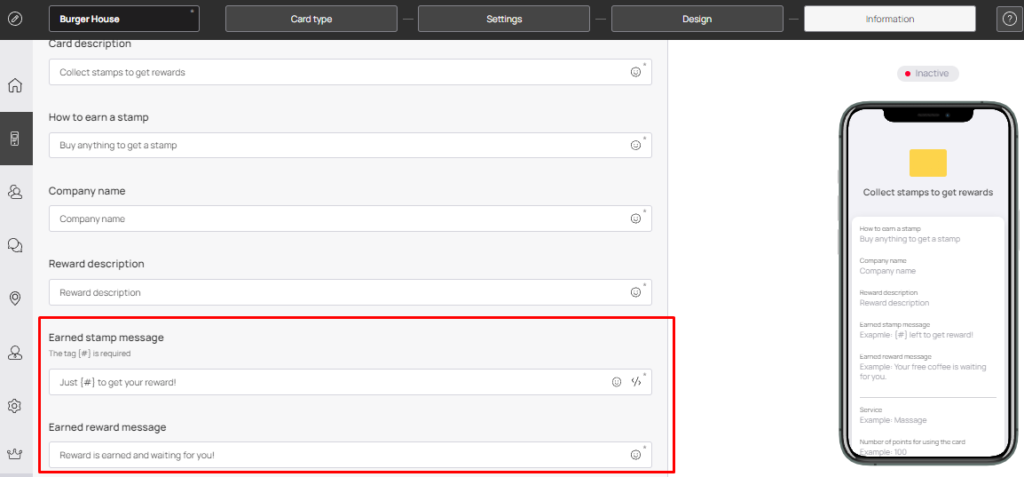
Customers receive such pushes after each purchase with their balance and card status being updated. Reminds them how many visits are left before the gift. To set transactional push notifications one should go to his card campaign tab on the left side bar, select the campaign(card) willing to use click Edit info in the right upper corner and click Info.
Use the {#} short code in the PUSH message about stamp accrual. It will automatically substitute the number of stamps left to receive award.
Earned stamp message The tag {#} is required
Example: Just {#} to get your reward!
Earned reward message
Other types of push notifications #
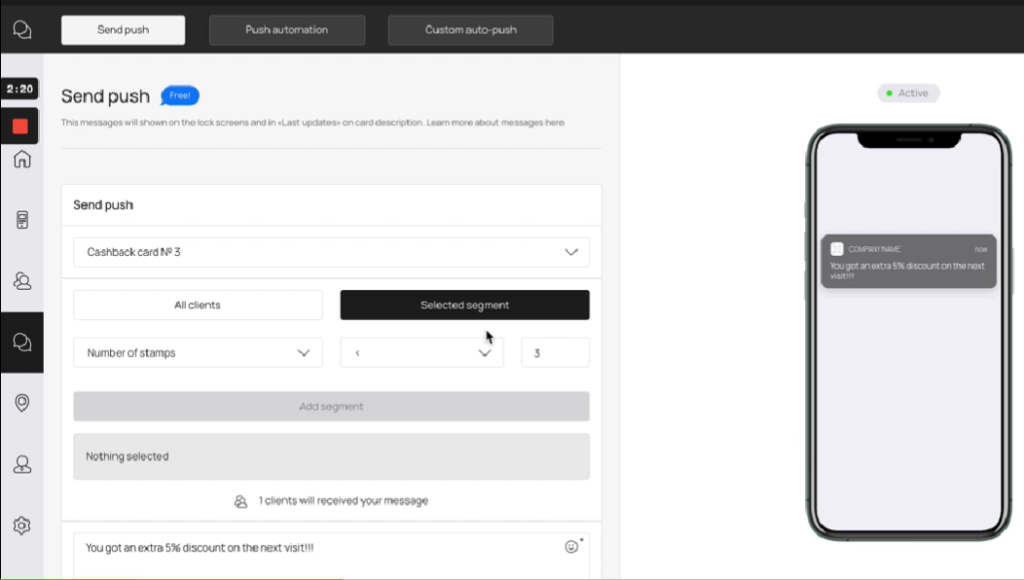
To send other types of push notifications one should click Push notifications tab on the left side bar. Immediately after that we can see our menu push notification that helps you with generating push notifications by yourself and send to:
1. All customers(all customers included in your database) or only to
2. Selected segment (a specific customers segment)
Steps to send (All customers) #
1.Select your loyalty card
2.Write a message in a message box
3.Click Send button
Steps to send (Selected segment) #
- Select your loyalty card Customized by
- Current number of uses
- Unused rewards
- Number of stamps
- Write a message in a message box
- Click Send button
Push automation feature (Top bar) #
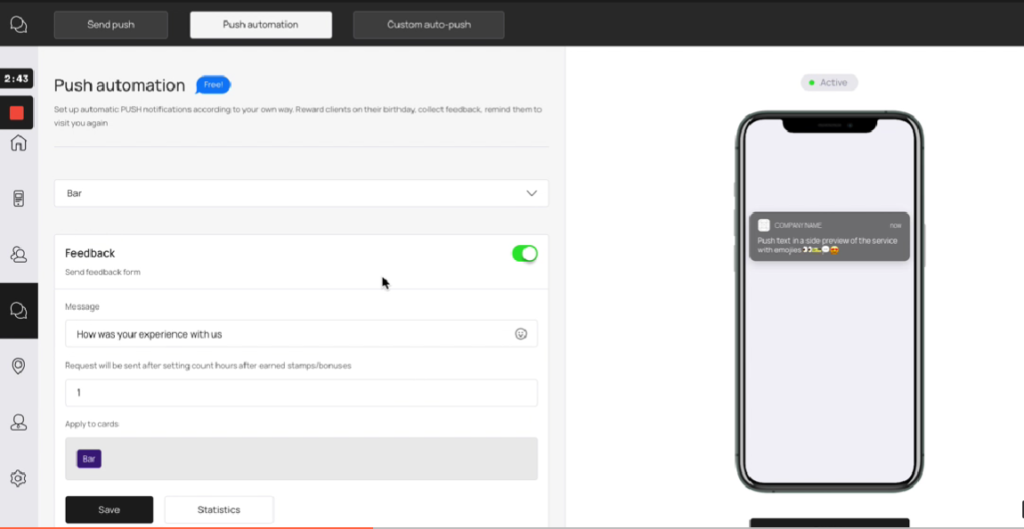
Set up automatic PUSH notifications according to your own way. Reward clients on their birthday, collect feedback, remind them to visit you again
1.Select your loyalty card
2.Set feedback request.
Message Request will be sent after setting count hours after earned stamps/bonuses
Apply to cards
- Set Next visit reminderClient will get reminder after setting termMessageReminder will be sent after setting count days after last earnedApply to cards
- Birthday congratulationsAdd birthday field in card enrollment formMessageCongratulation will be sent after setting count days before birthdayApply to cards
Customized auto-push feature #
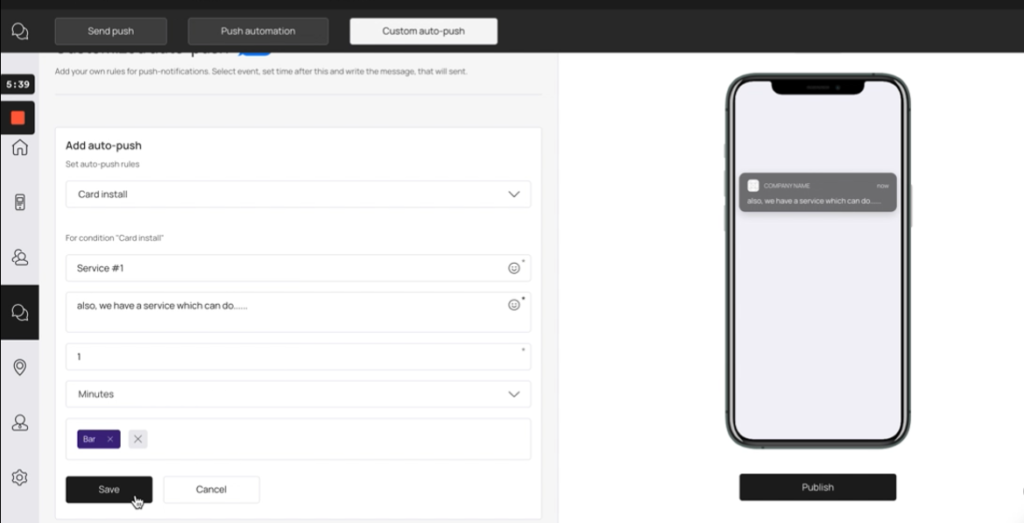
Programmable push notifications
Add your own rules for push-notifications.
Select event, set time after this and write the message that will be sent.
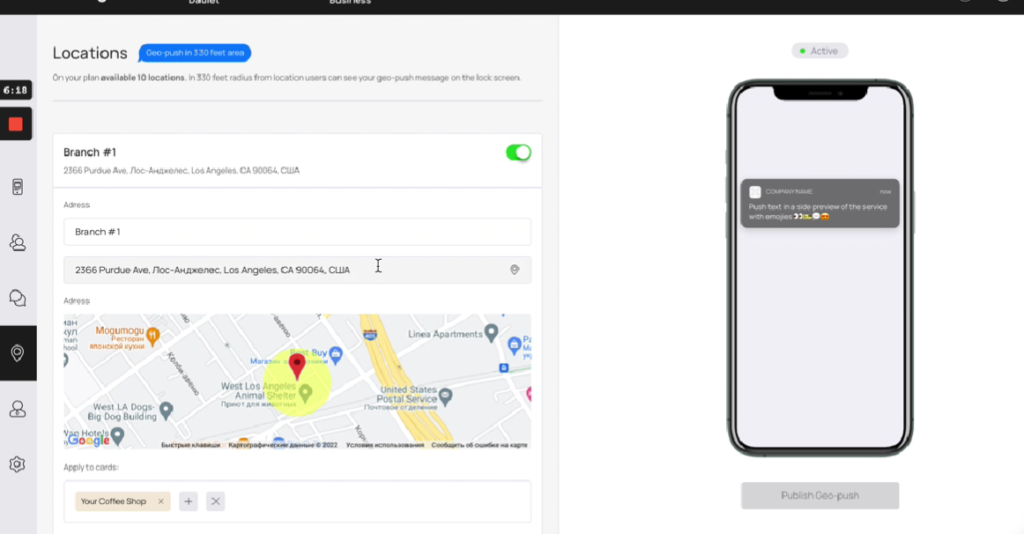
Geo based push notifications #
To send push notifications one should click Locations tab on the left side bar.
Locations
Geo-push within 330 feet distance
10 locations available in your plan.
Users can see your geo-push message on the lock screen within 330 feet distance from location.
- Select location
- Select type of promotion
- Save
Notes: #
=> Enter your message in the field, no longer than 80-85 characters. Texts longer than that will simply be cut off when displayed on the client’s device.
=> Use emoticons in your message to look brighter and more friendly 😃🎃💅👸🍒🥐🎱🚀
=> The history of all notifications can be seen at the bottom.