
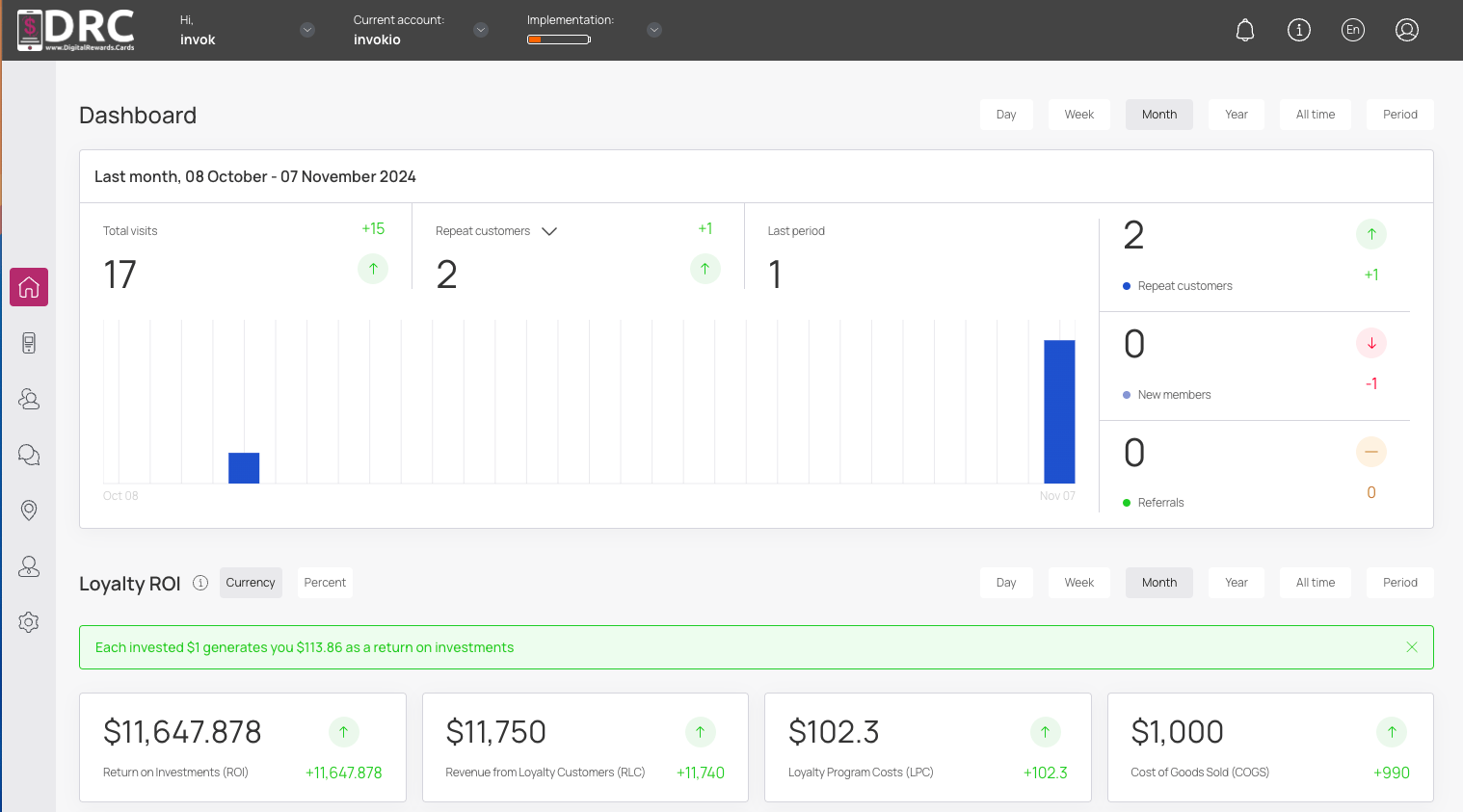
In this video, you learn how to Integrate DRC with Square Rewards. #
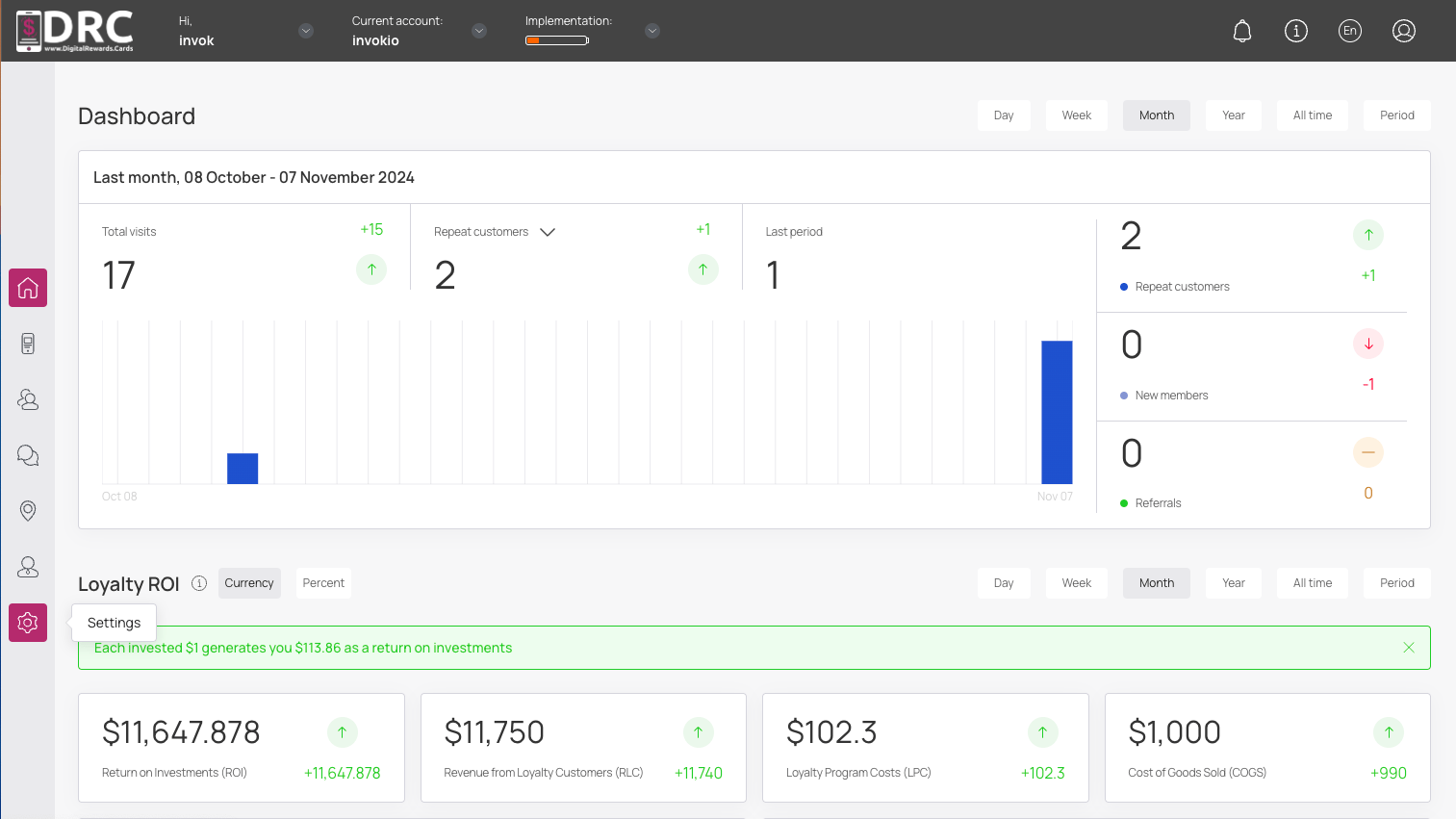
Once logged in to your DRC Dashboard, click on the settings icon. #
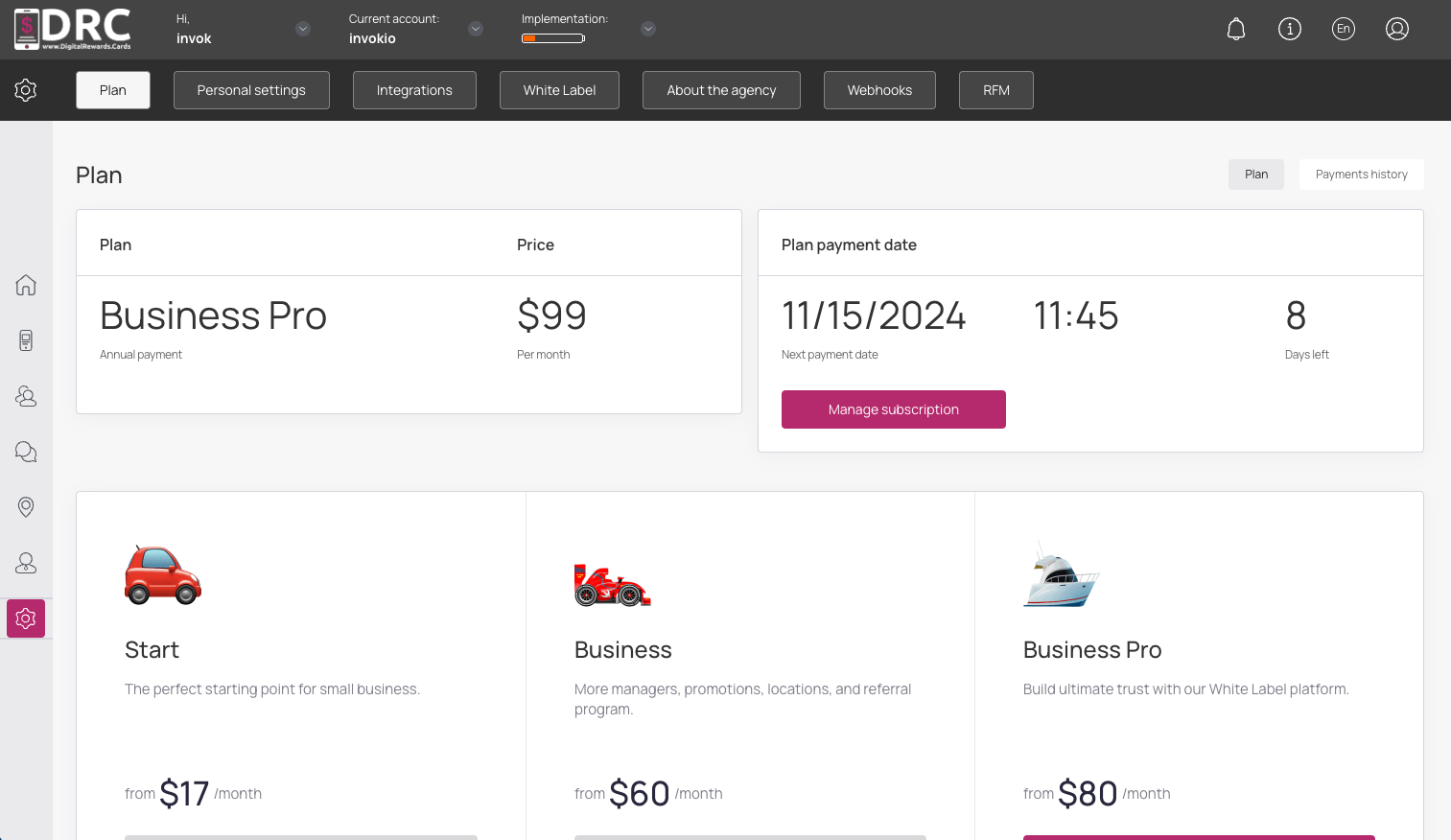
Now navigate to the Integration screen. #
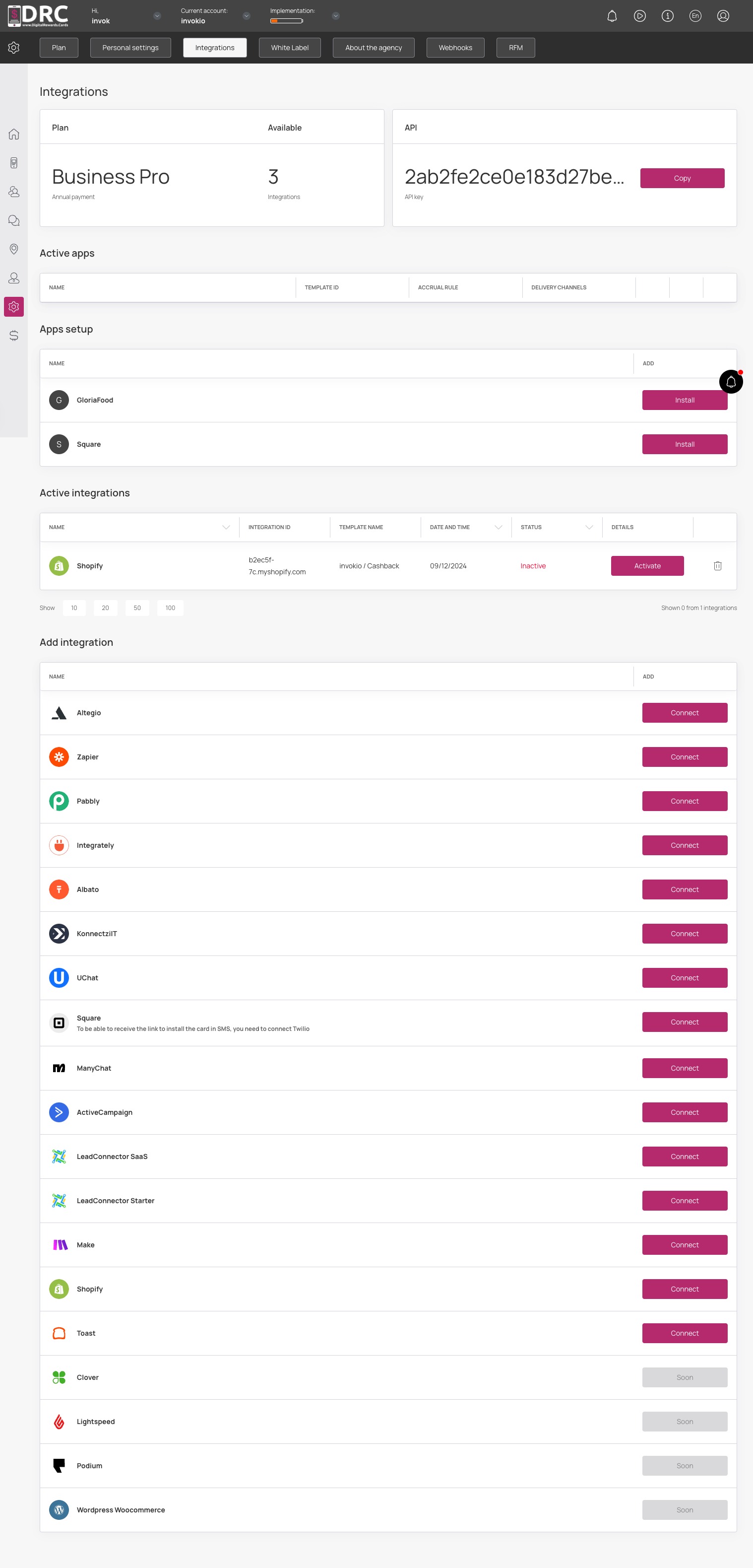
Once on the Integrations screen, scroll down to Square option and click the connect button. #
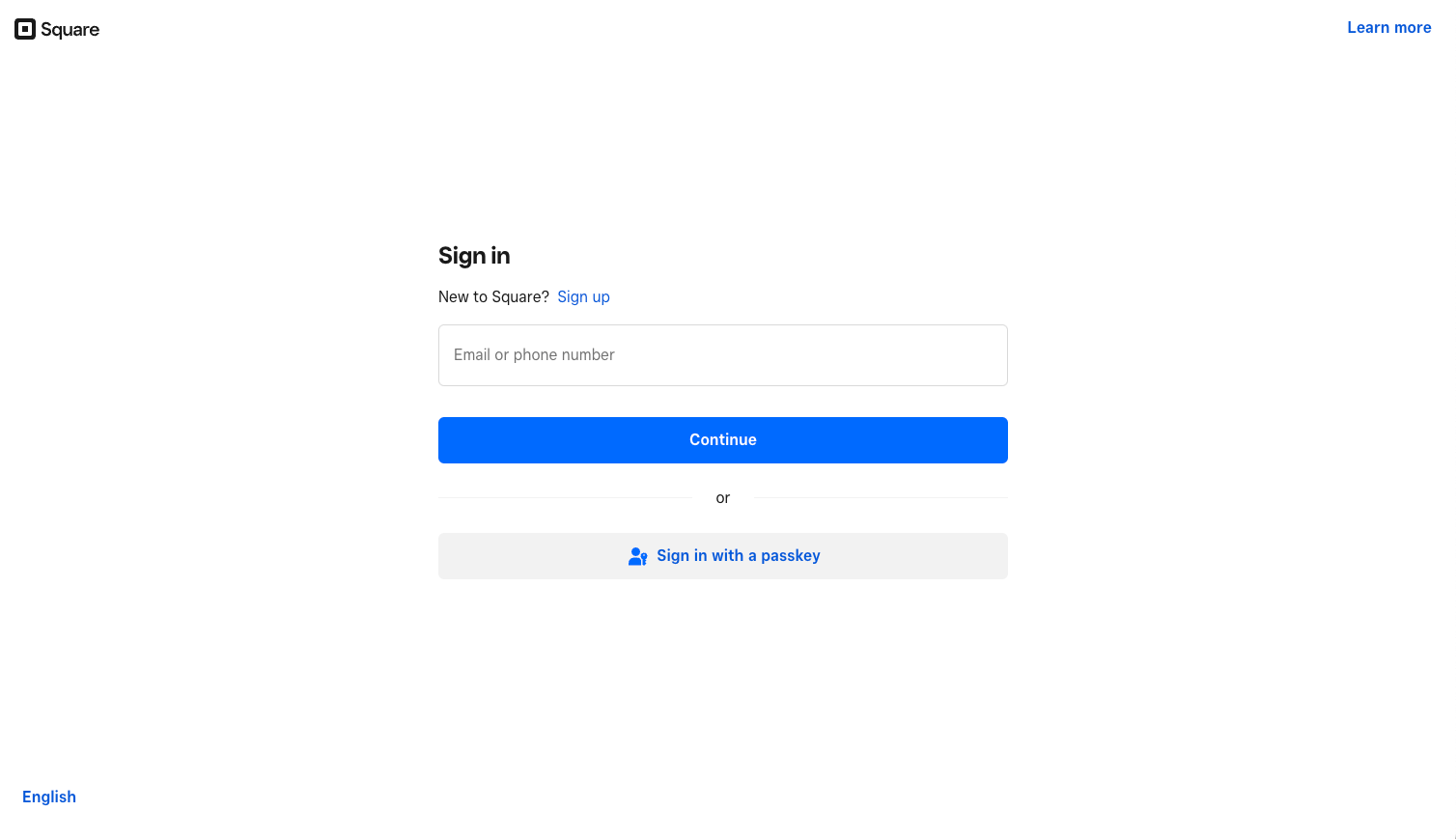
You’ll be prompted to login to Square. Add your existing email or phone number, then click the continue button. #
Or you can create a new Square account by clicking the sign up link. #
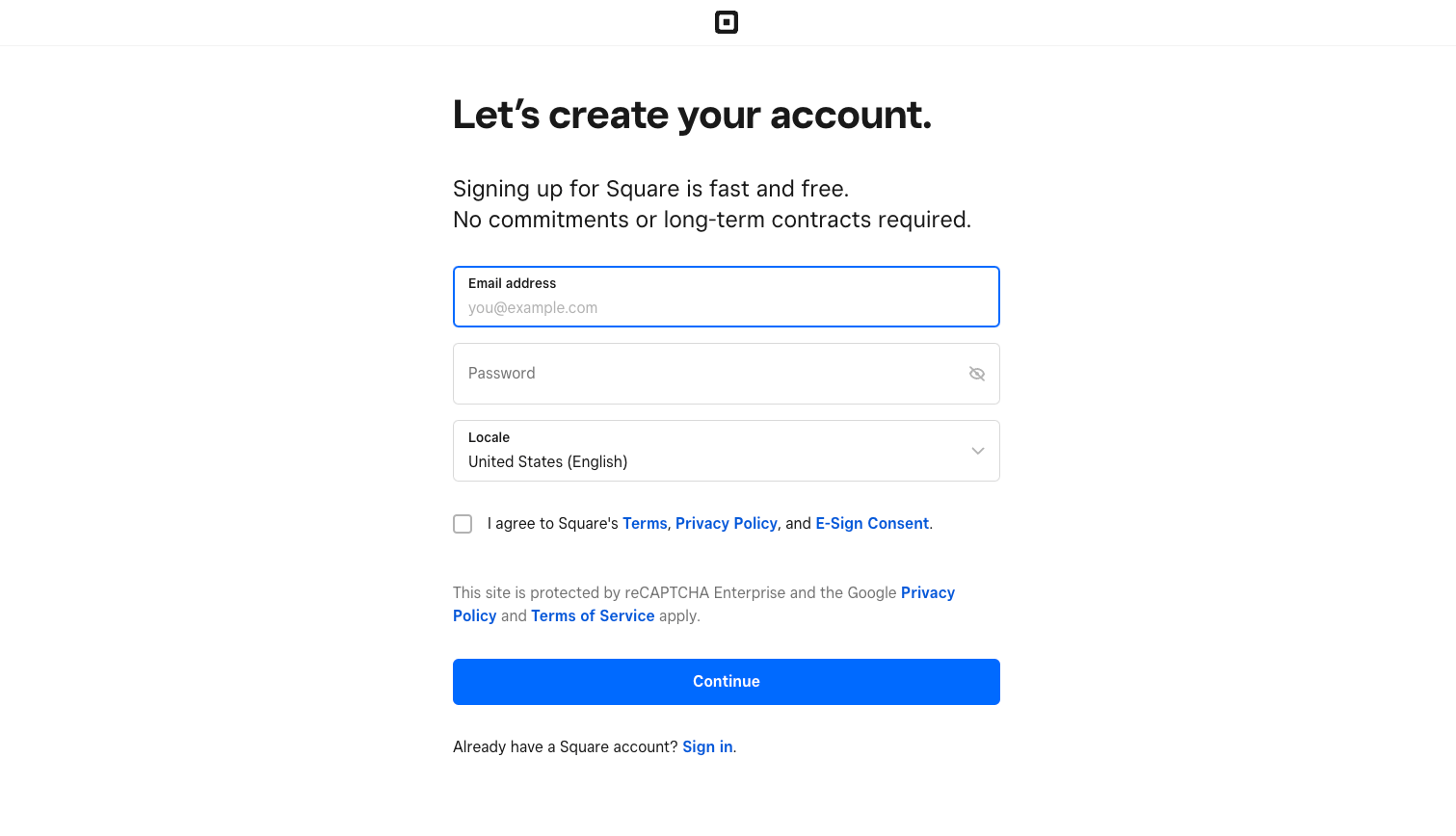
If you’re creating an account, complete the form and click the continue button. #
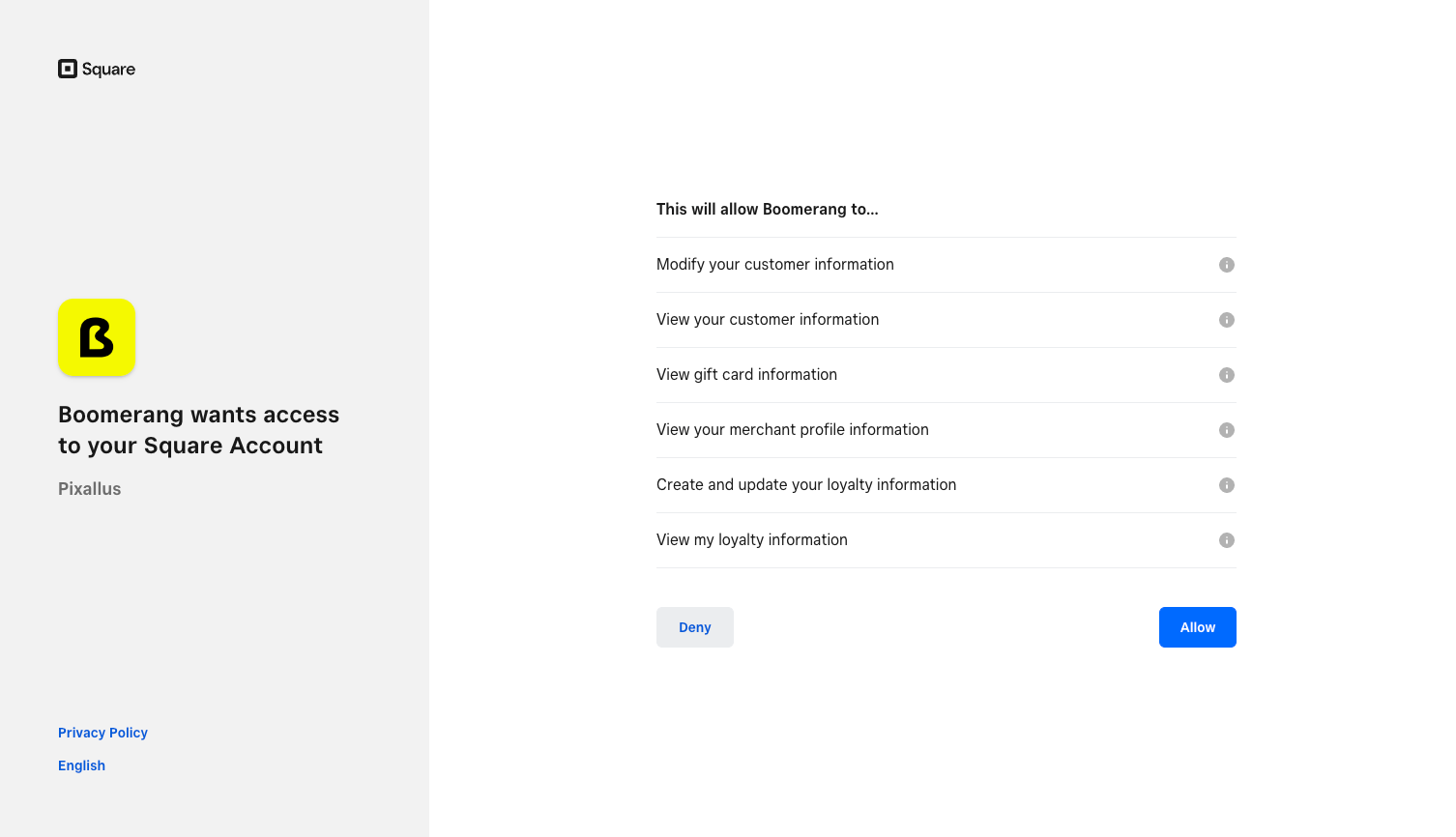
You’ll see a list of permissions. #
Simply click the allow button.
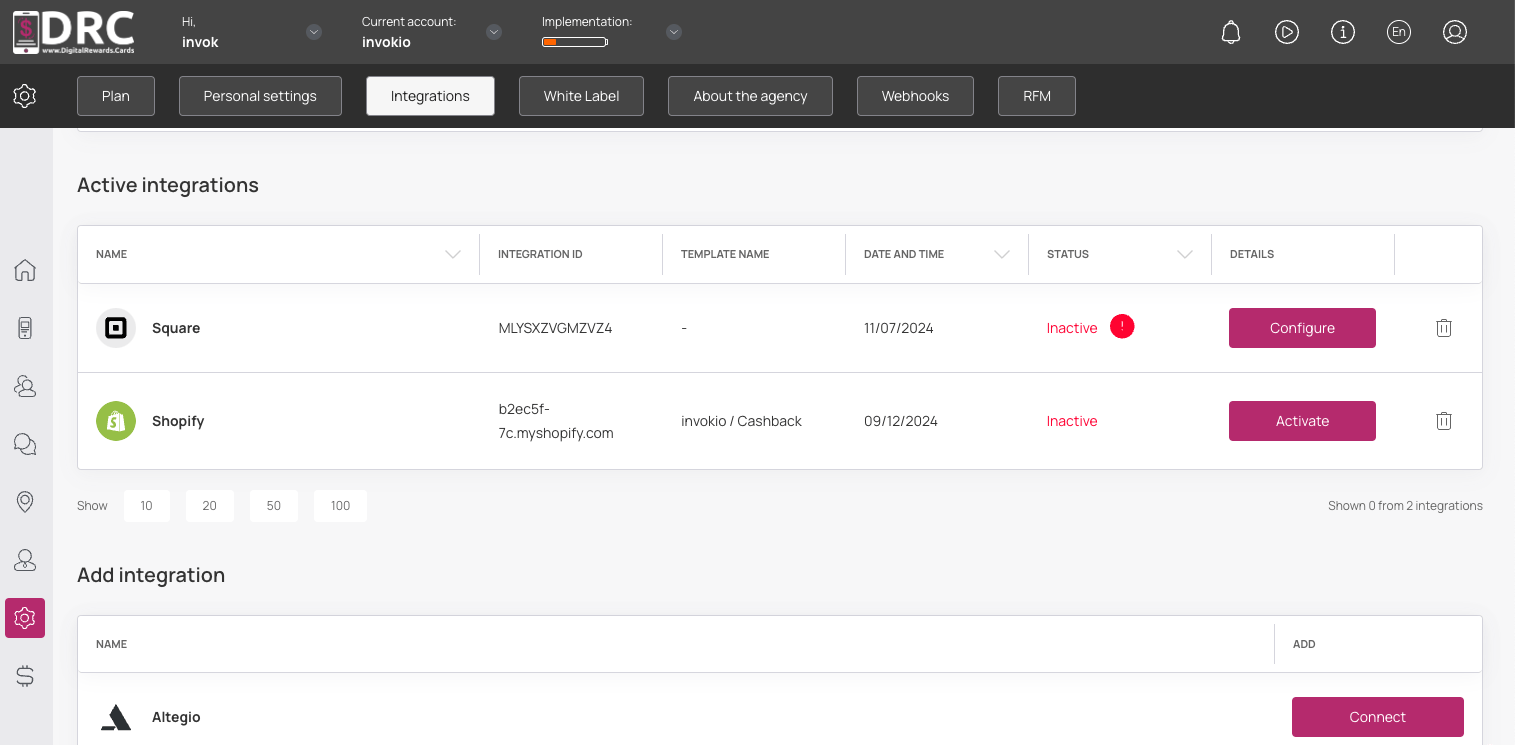
You’ll now see Square is connected to DRC under Active Integrations. #
You’ll also notice the Status is showing inactive. You will need to active the rewards program on Square and configure your reward levels.
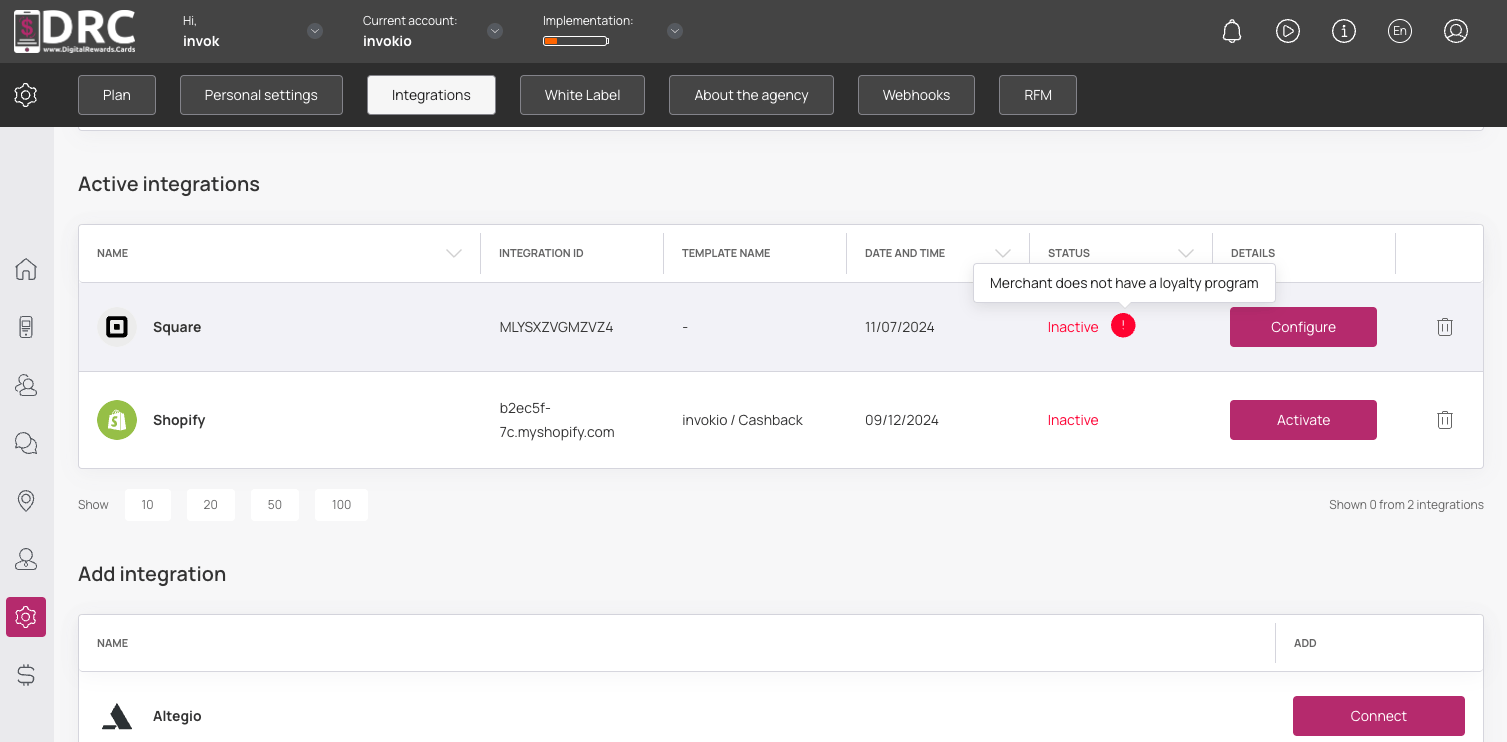
Once your reward levels are configured in Square, click the configure button. #
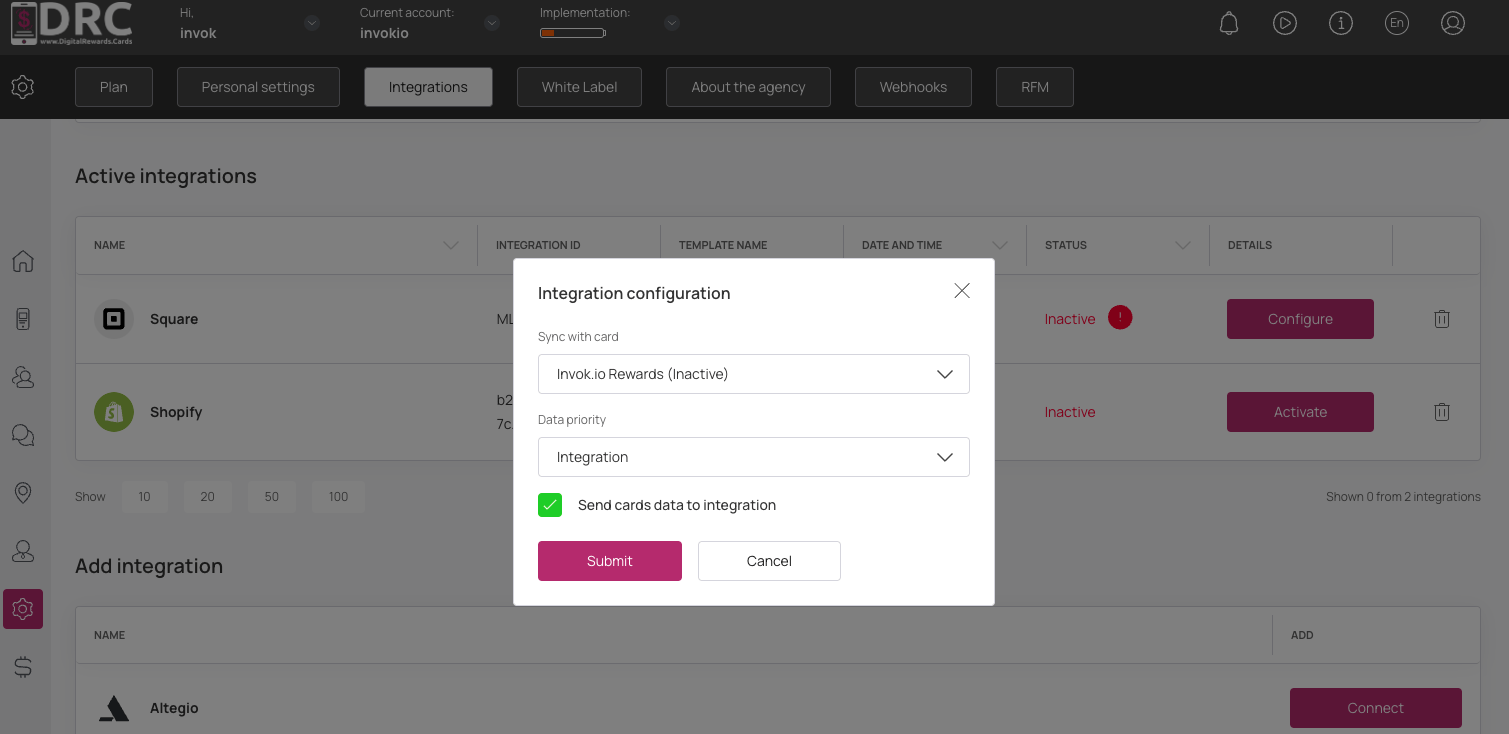
Now, choose which card to integrate with Square Rewards. #
Choose your Data Priority, check the box for Send cards data, then click the submit button.
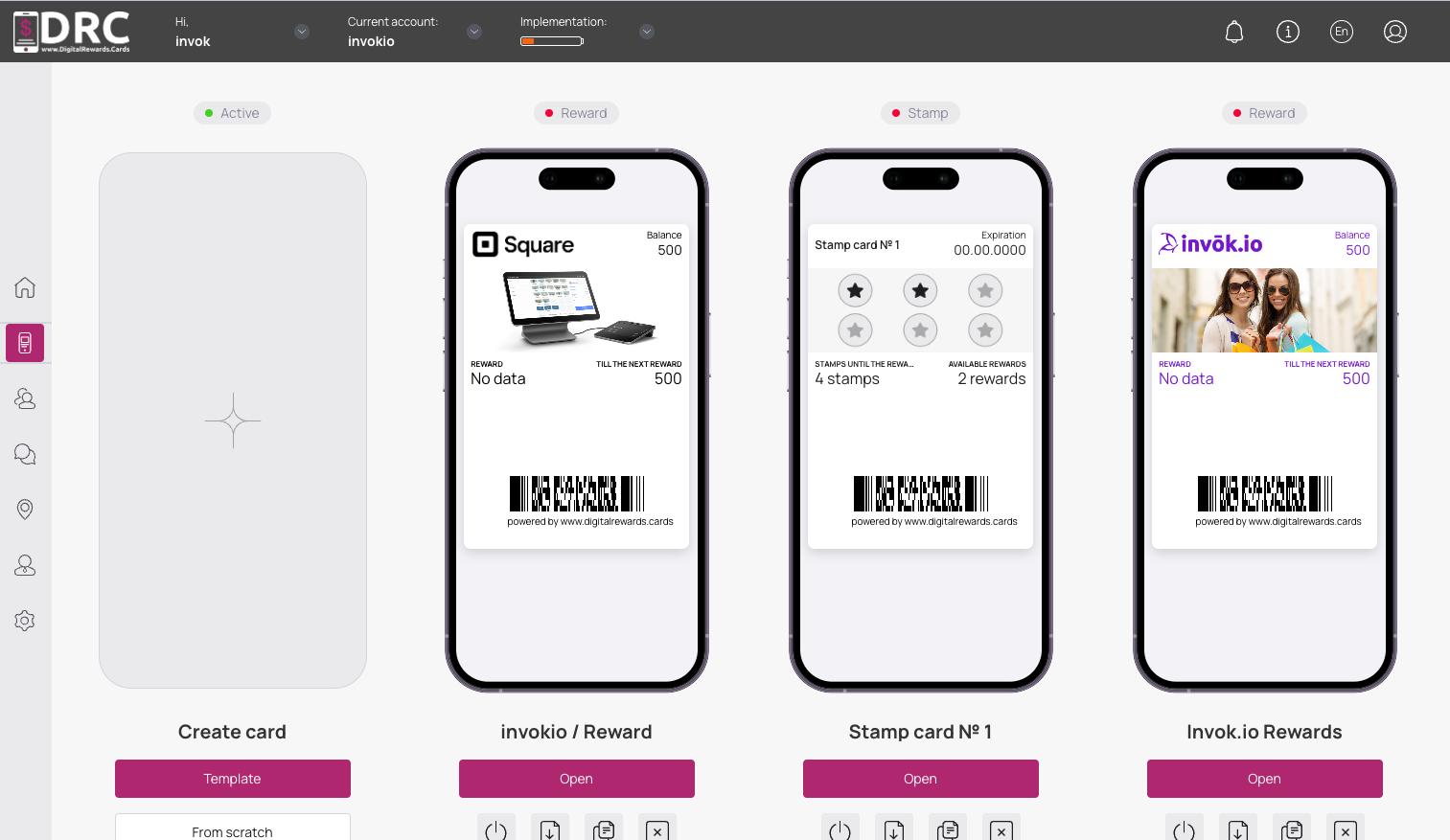
Now go to the cards section: #
we can see that a reward card was created when the integration was connected.
The template settings show all the reward levels configured in your Square account. #
You don’t need to customize the reward levels in DRC yourself.
They are synchronized with the loyalty settings of your Square account. #
The phone field should be required on the Card issuing form.
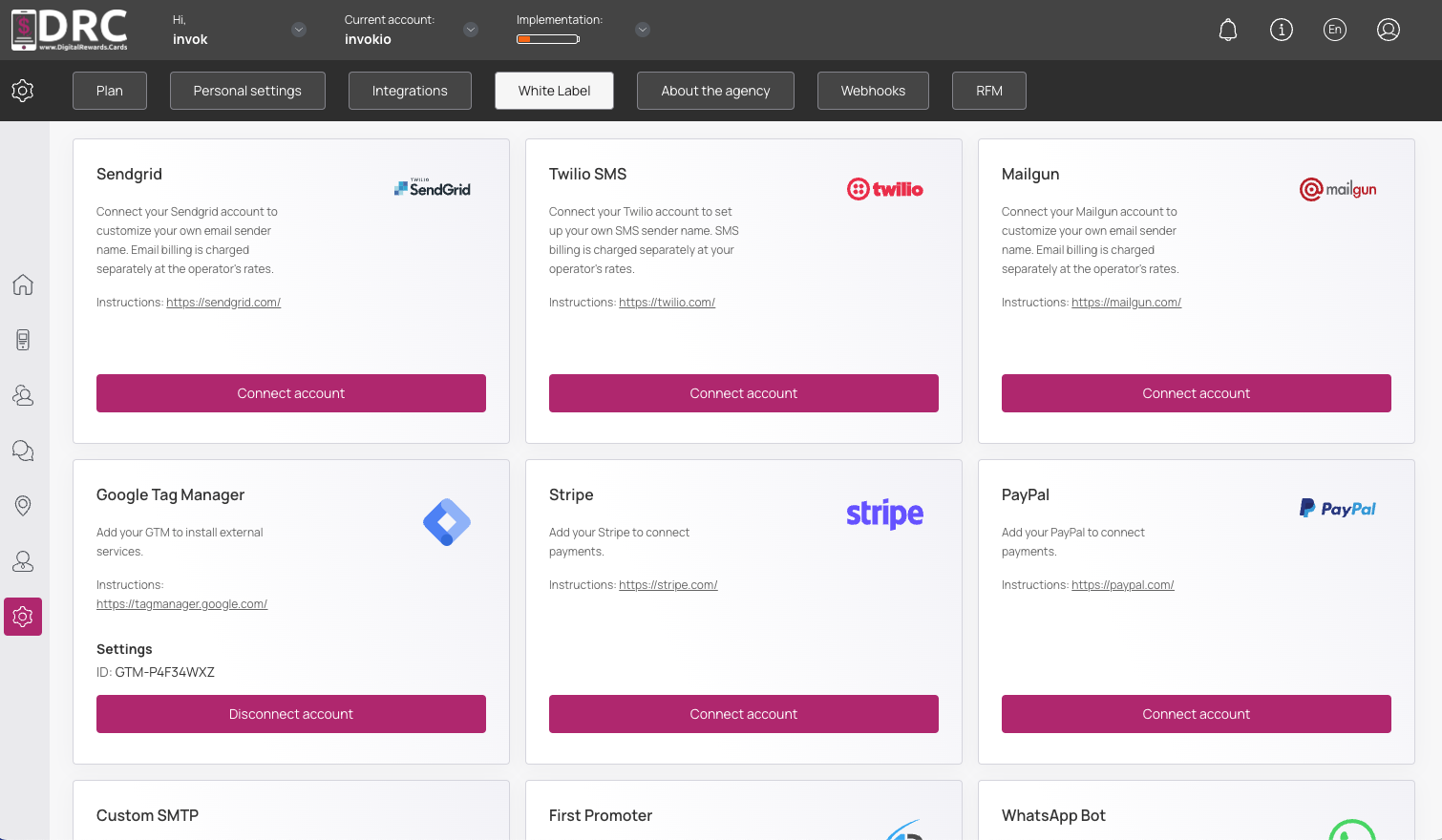
Now the integration with Square is complete. #
In order for your customers to receive a link to install the card, you need to connect Twilio service.
It works as follows: #
in the customer’s profile Square in the section “Loyalty Summary” we create an account, in DRC we create a customer with the same data, an integrated loyalty card is issued for him and an SMS with a link to install the card is sent.
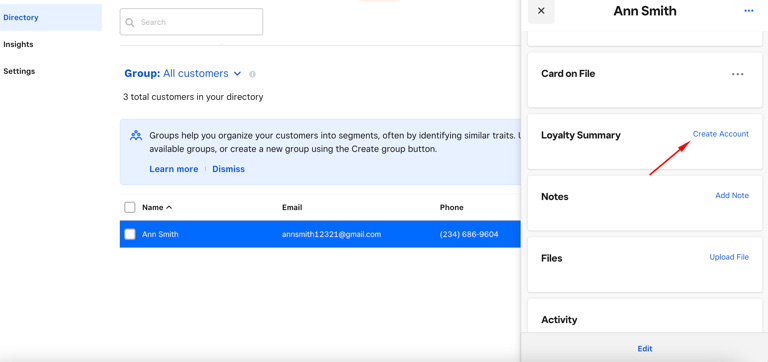
If the loyalty card is issued on the side of DRC (by QR or referral program) #
a customer and a loyalty account with the same data are created in Square.
Now all changes of bonus quantity and reward availability are synchronized in DRC and Square. #
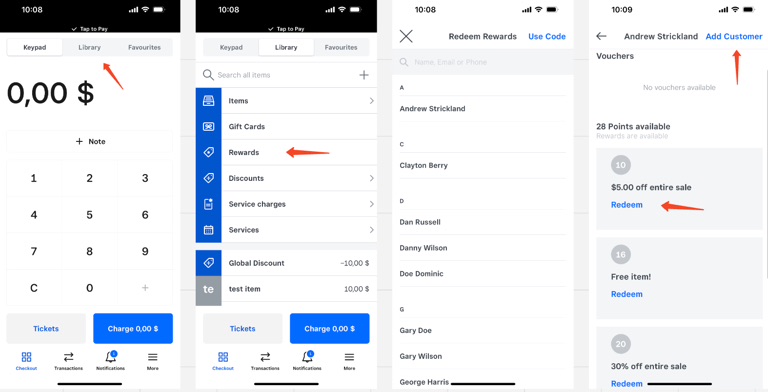
You can redeem rewards through the Square POS mobile app. #
Download it on iOS and authorize. Navigate to rewards in the Library section and select a customer.
Select the award to redeem and tap Add customer. #
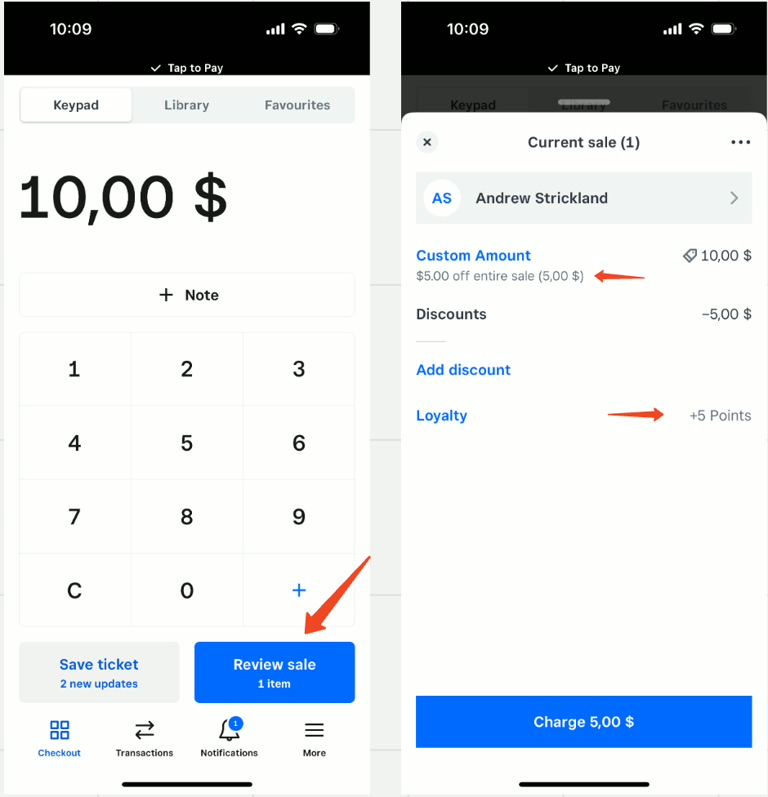
Now enter the purchase amount and tap Review Sale. #
You can see that the reward is displayed. It also says how many points will be added for the purchase.
We recommend using valid phone numbers #
for testing, otherwise customers are not created in the Square.