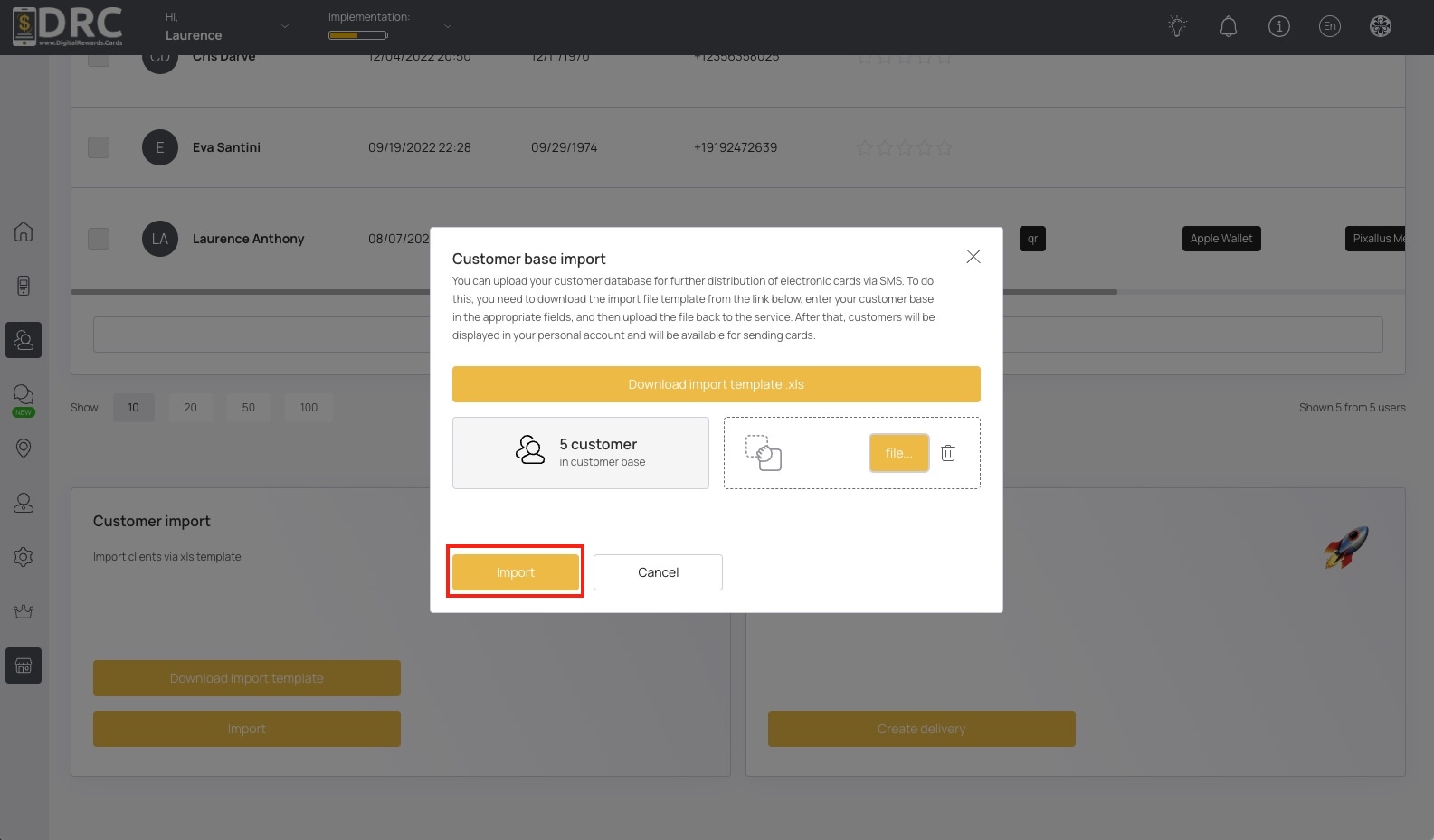
Learn how to import and migrate your existing customers spreadsheet.
When importing your existing customers and rewards balances, you can simply add their existing stamps, points, and rewards to the Balance column in the spreadsheet. DRC will convert the balance and give rewards based on the card rules that you’re importing to. Download the example import file here.
So if the card rules are 5 stamps for 1 reward and a customer already has 2 stamps and 1 reward, you’ll need to set the Balance column to 7 before importing. The system will automatically give the customer 1 reward and the customer would have 2 stamps as a balance. Instantly visible when your customers install your new stamp card in their digital wallet.
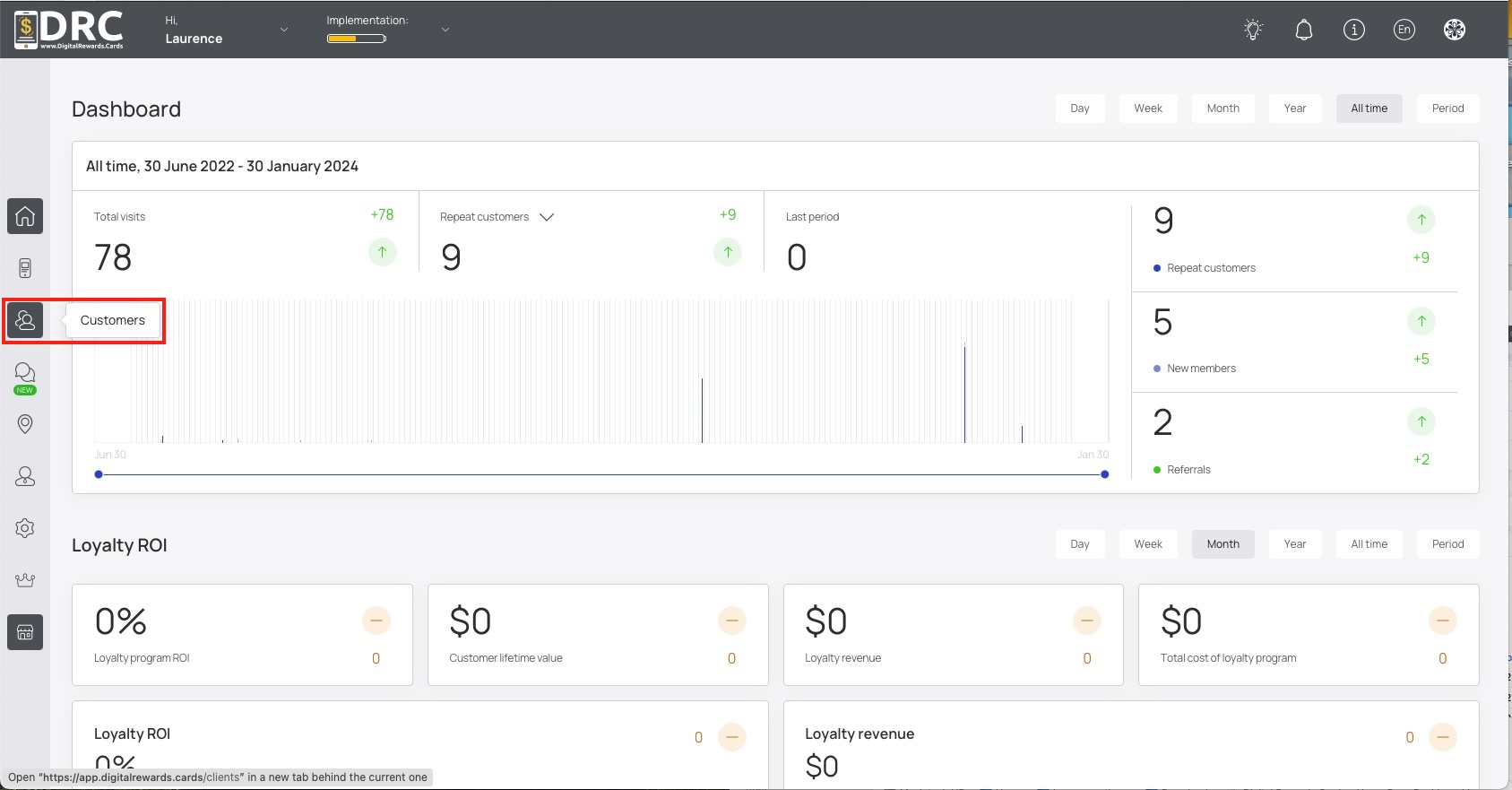
Once logged into the dashboard, click the Customers icon in the left sidebar. #
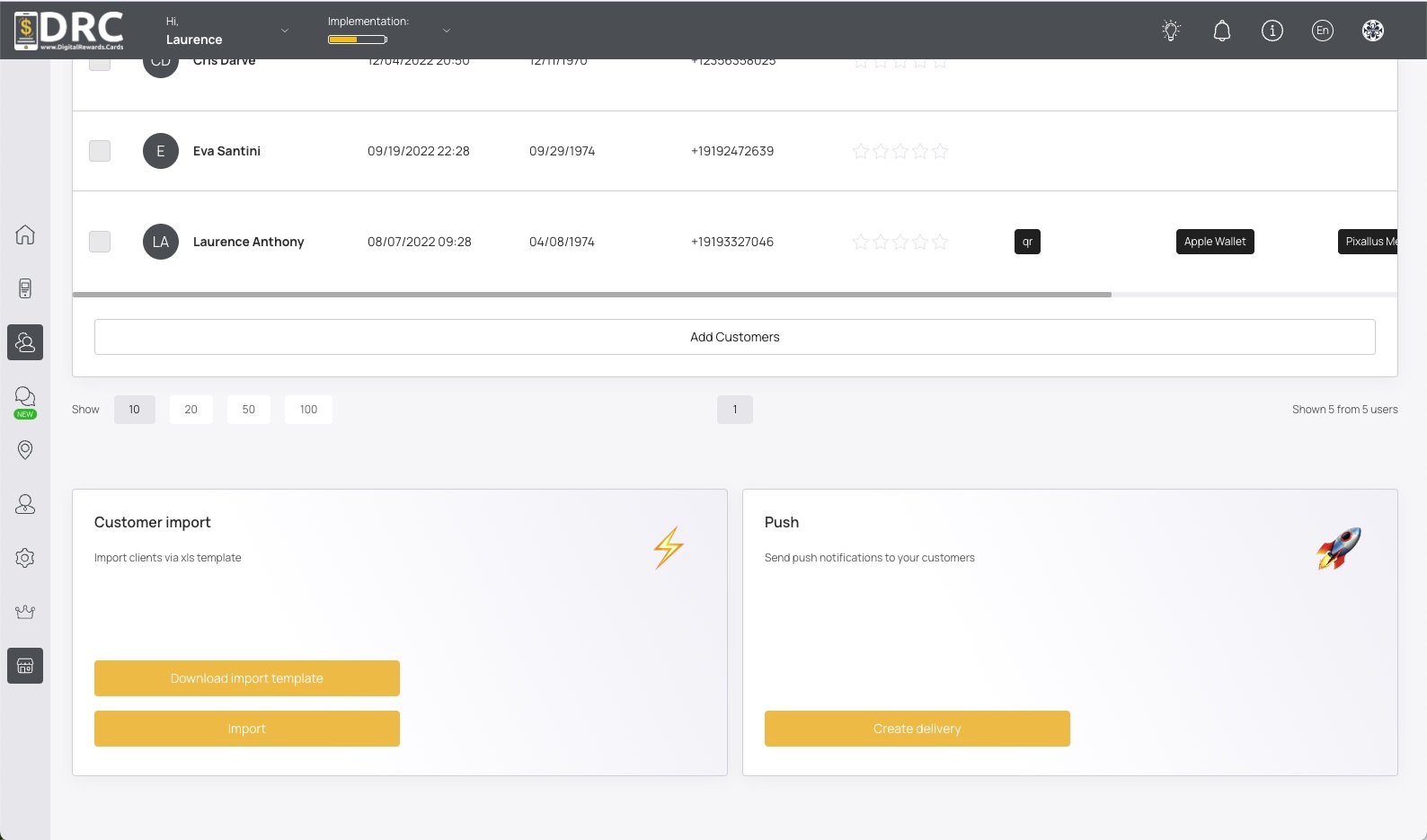
Scroll down to the Customer Import section and click the Download Template button. #

Add your contacts to the spreadsheet template according to the columns in the template. #
Once your spreadsheet is formatted, click the Import button. #

In the popup, click the Select File button and choose your spreadsheet to import. #