Learn how to create custom filters and segments based on other criteria in the Digital Rewards Cards (DRC) dashboard:
- Card balance
- Device type
- Card serial number
- Card status
- UTM-tag
- Current number of uses
- Registration date
- Gender
- Name
- Phone
- Unused rewards
- Number of stamps
- Customer birthday
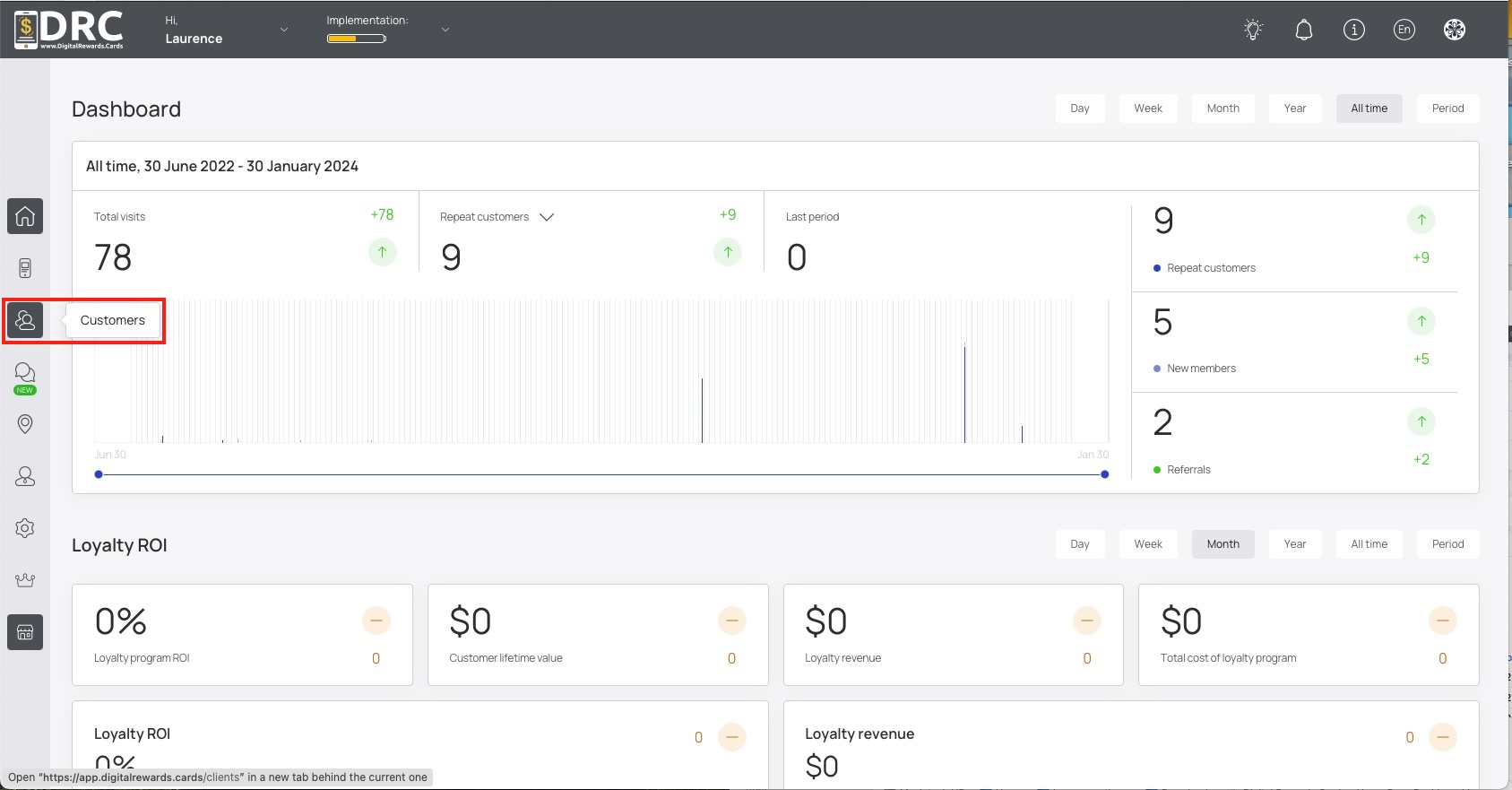
Once logged into the Dashboard, click on the Customers icon in the left sidebar. #
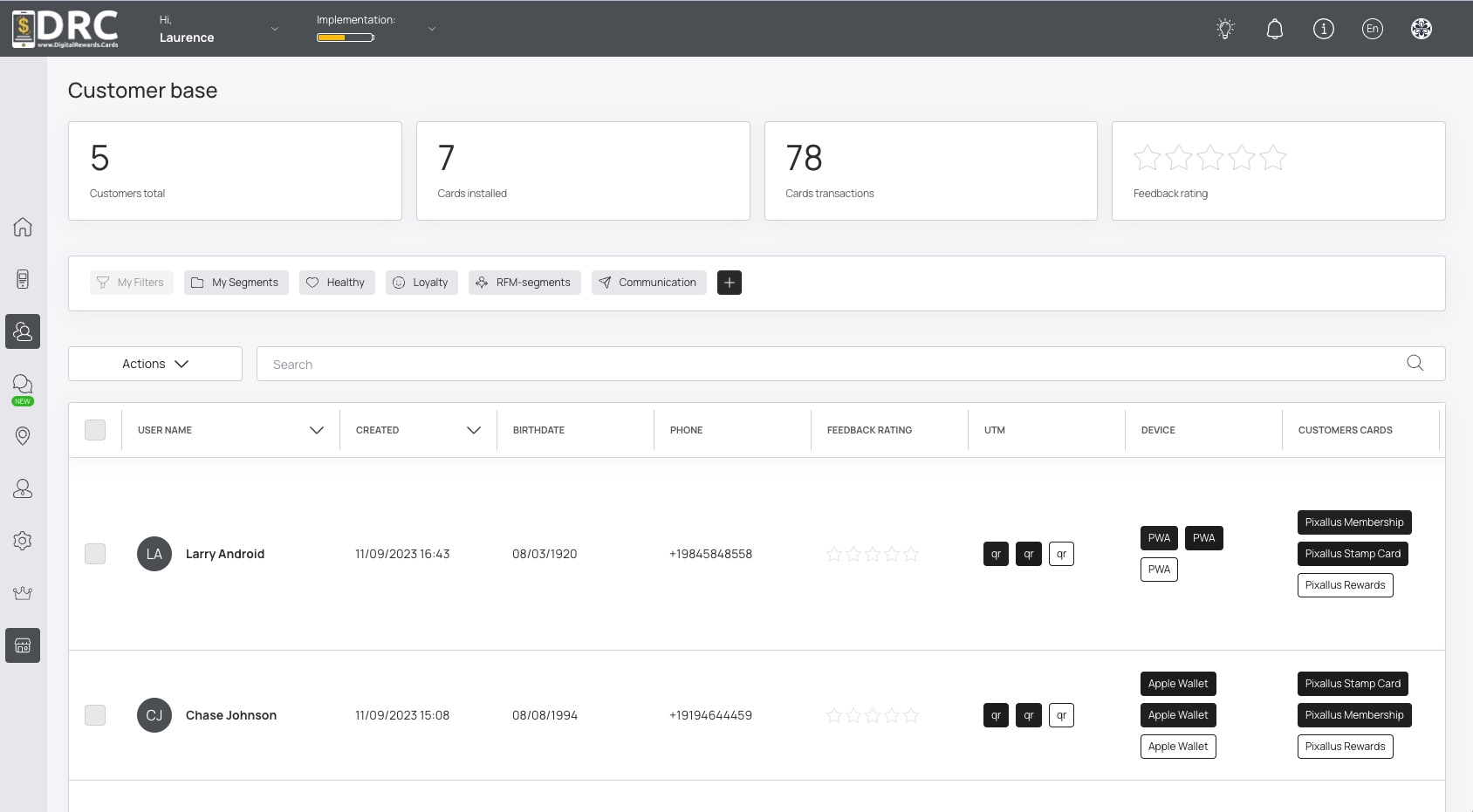
To create a custom filter, click the plus button in the filter bar. #
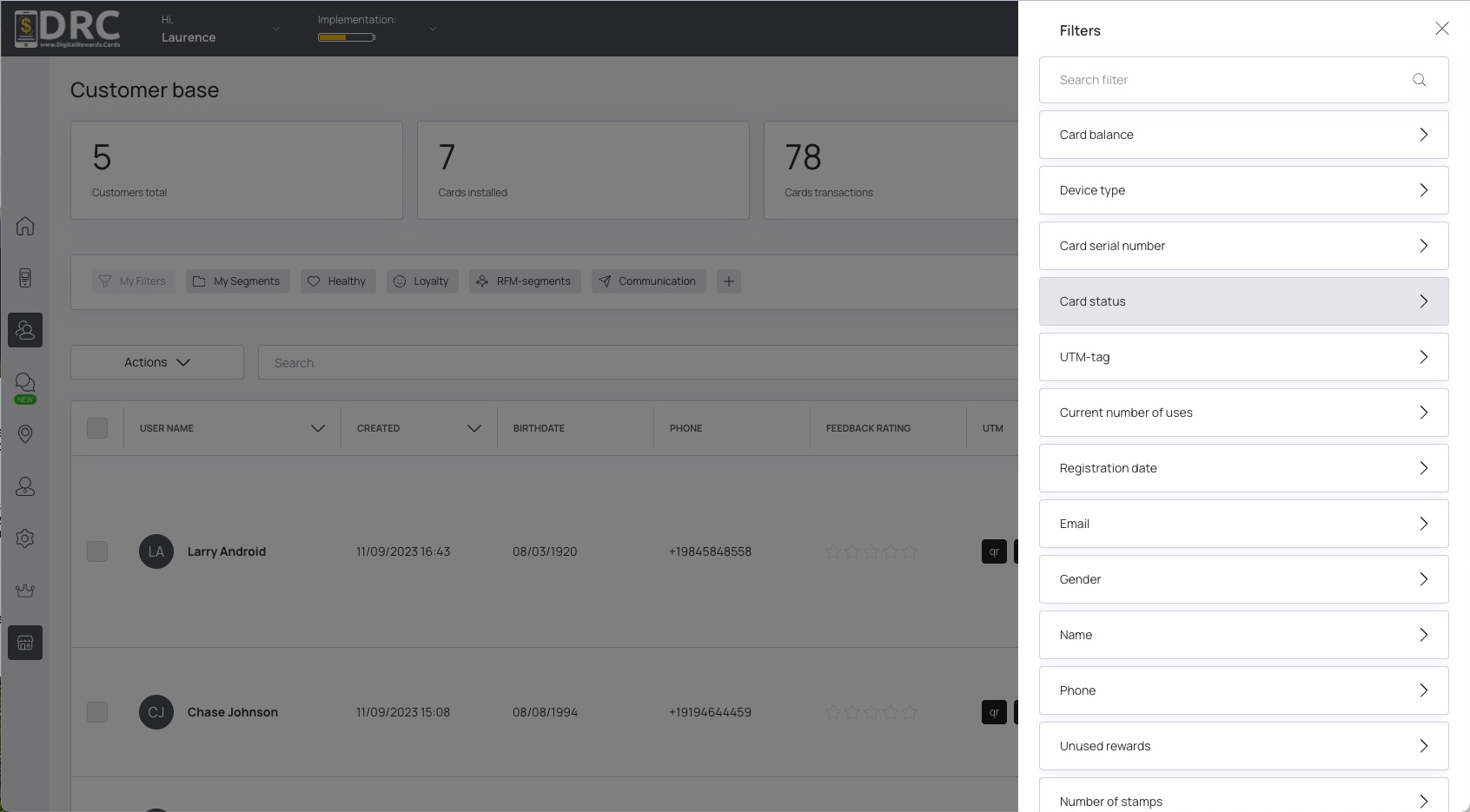
Custom filters options are displayed. In this case, let’s find customers who don’t have a card installed. #
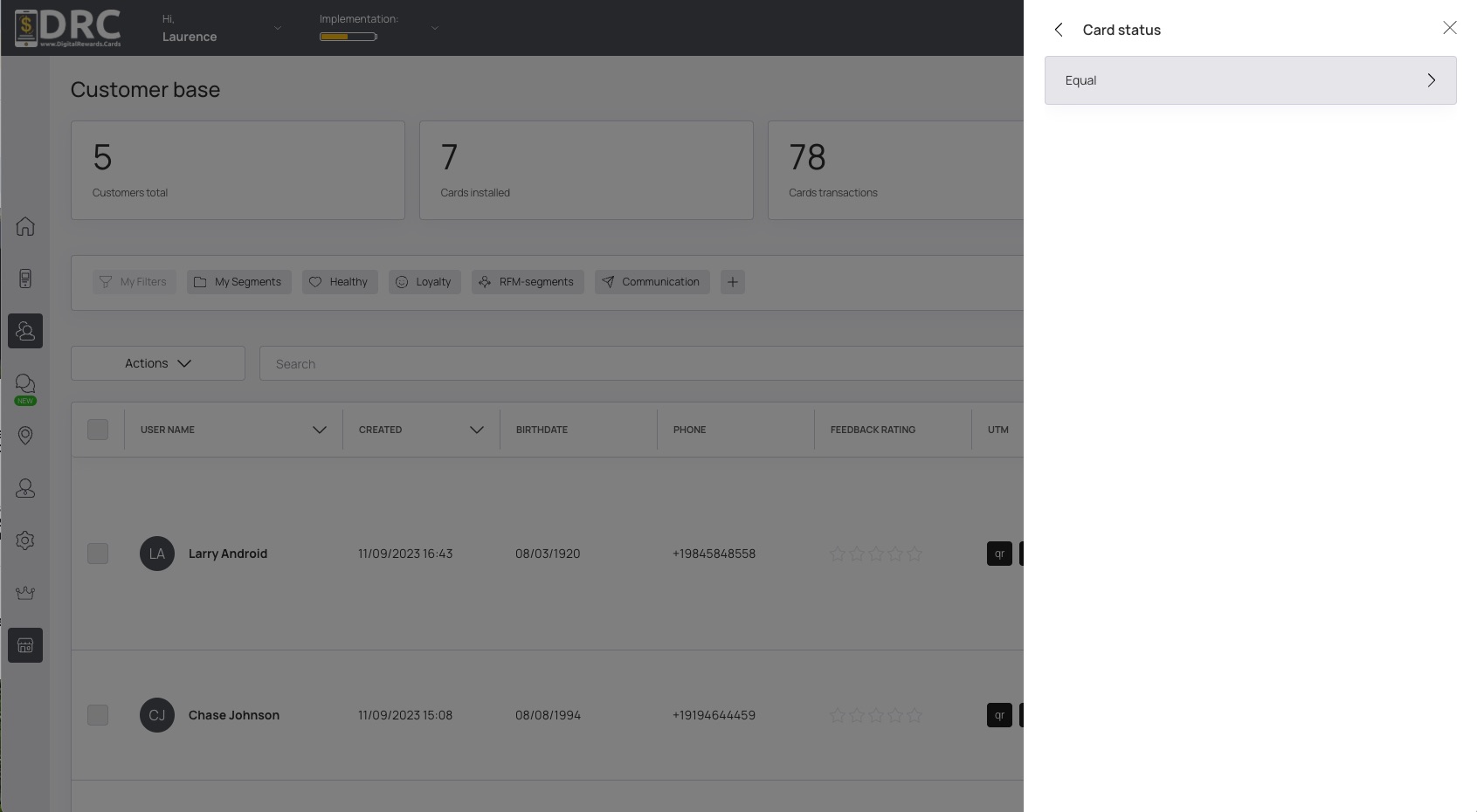
Click on Equal button to choose Card Status. #
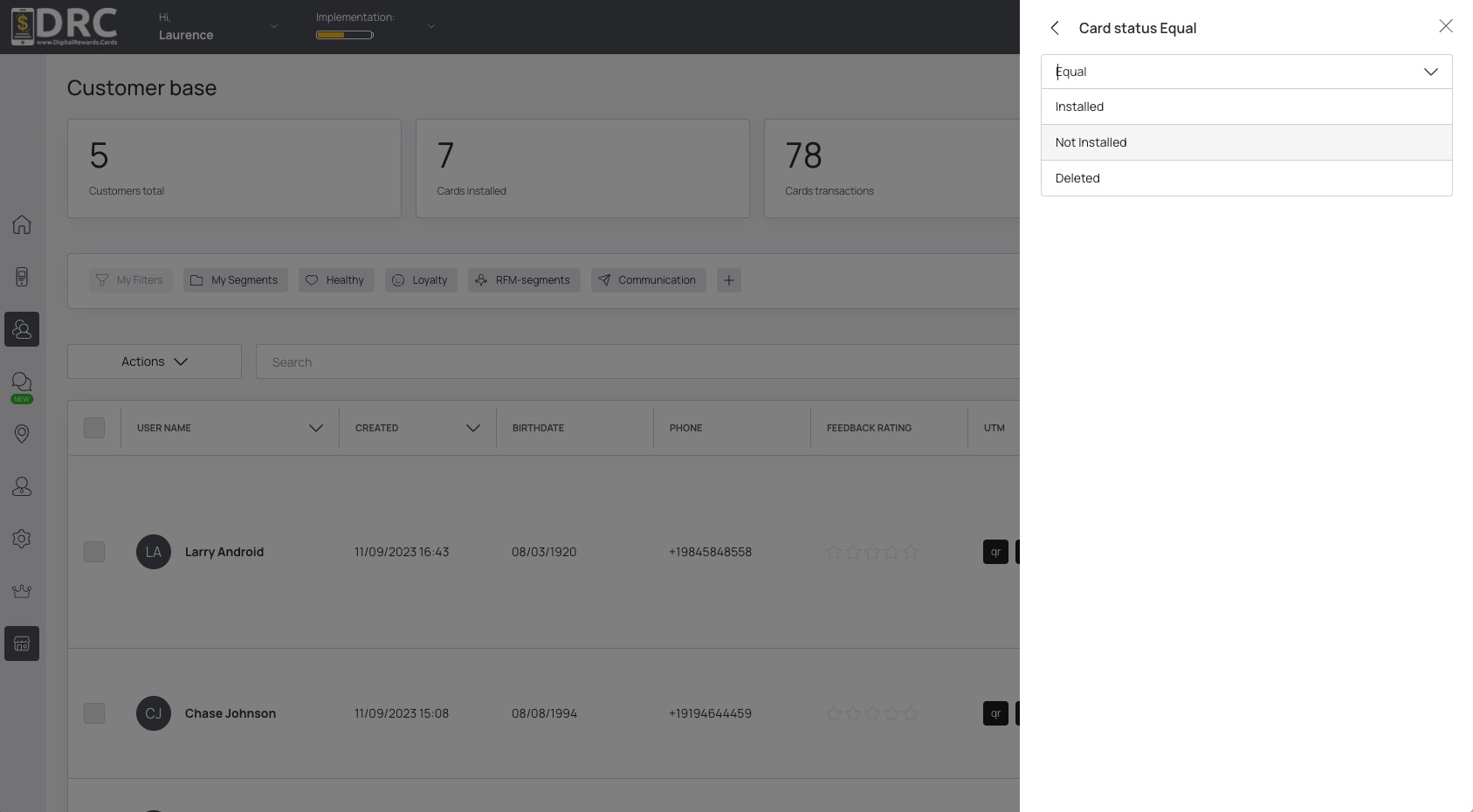
Now, let’s choose Not Installed. #
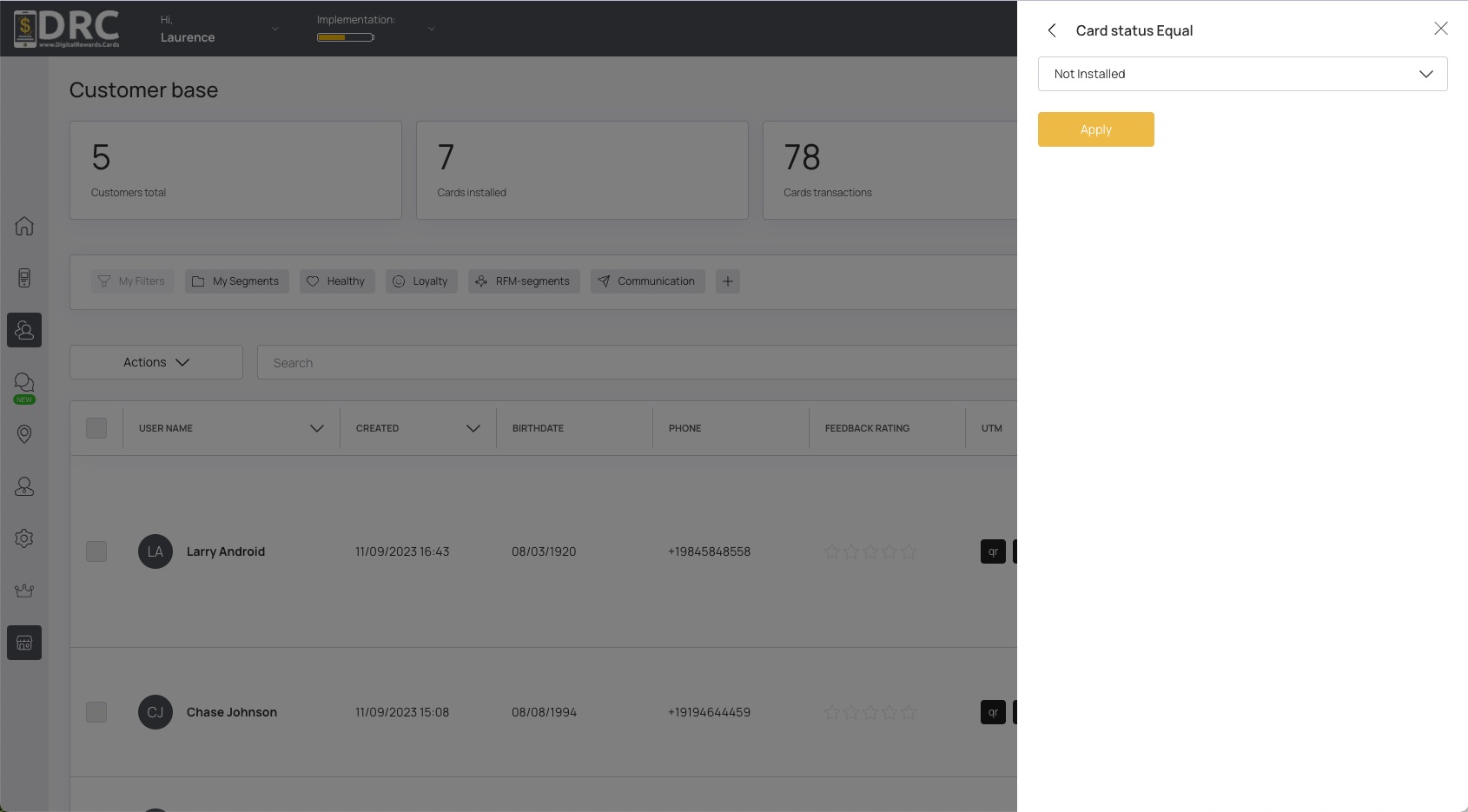
Now click the Apply button. #
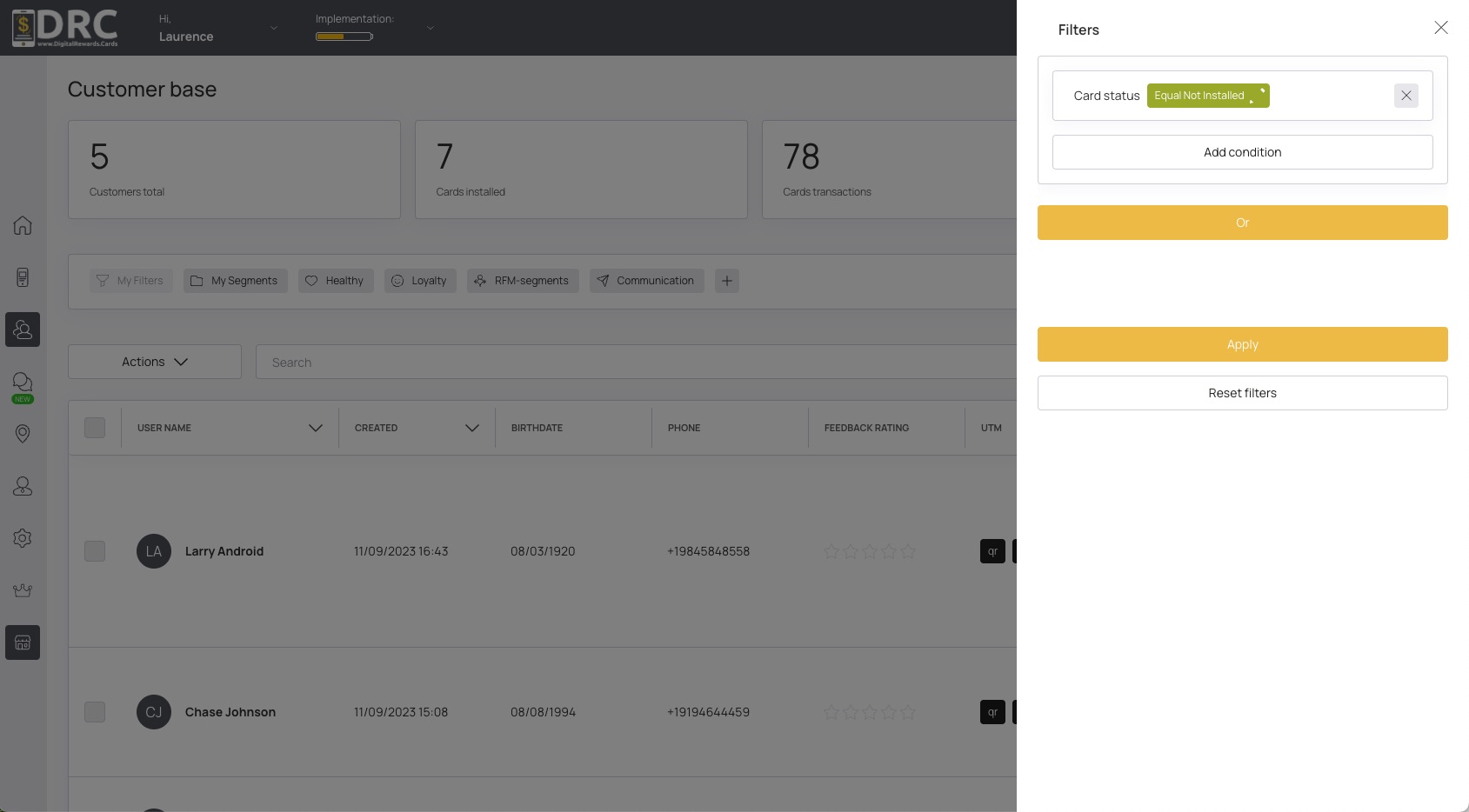
Now the Not Installed Card Status filter is selected. You can choose to add more filters. #
To use the AND operator, click Add Condition button. Then select more filter options. #
To use the OR operator, click the Or button. Then select more filter options. #
Once you’re satisfied with all your filters, click the Apply button. #
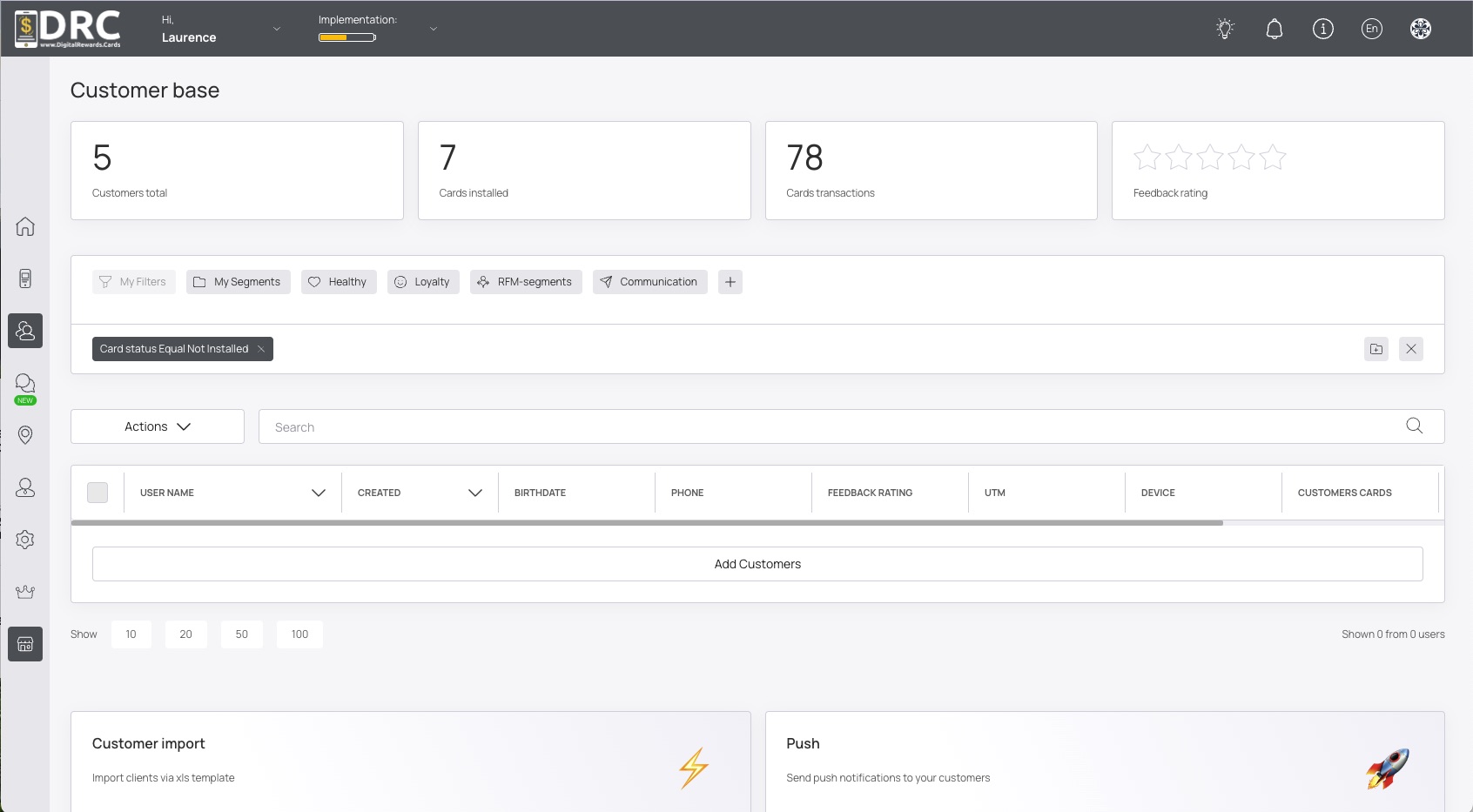
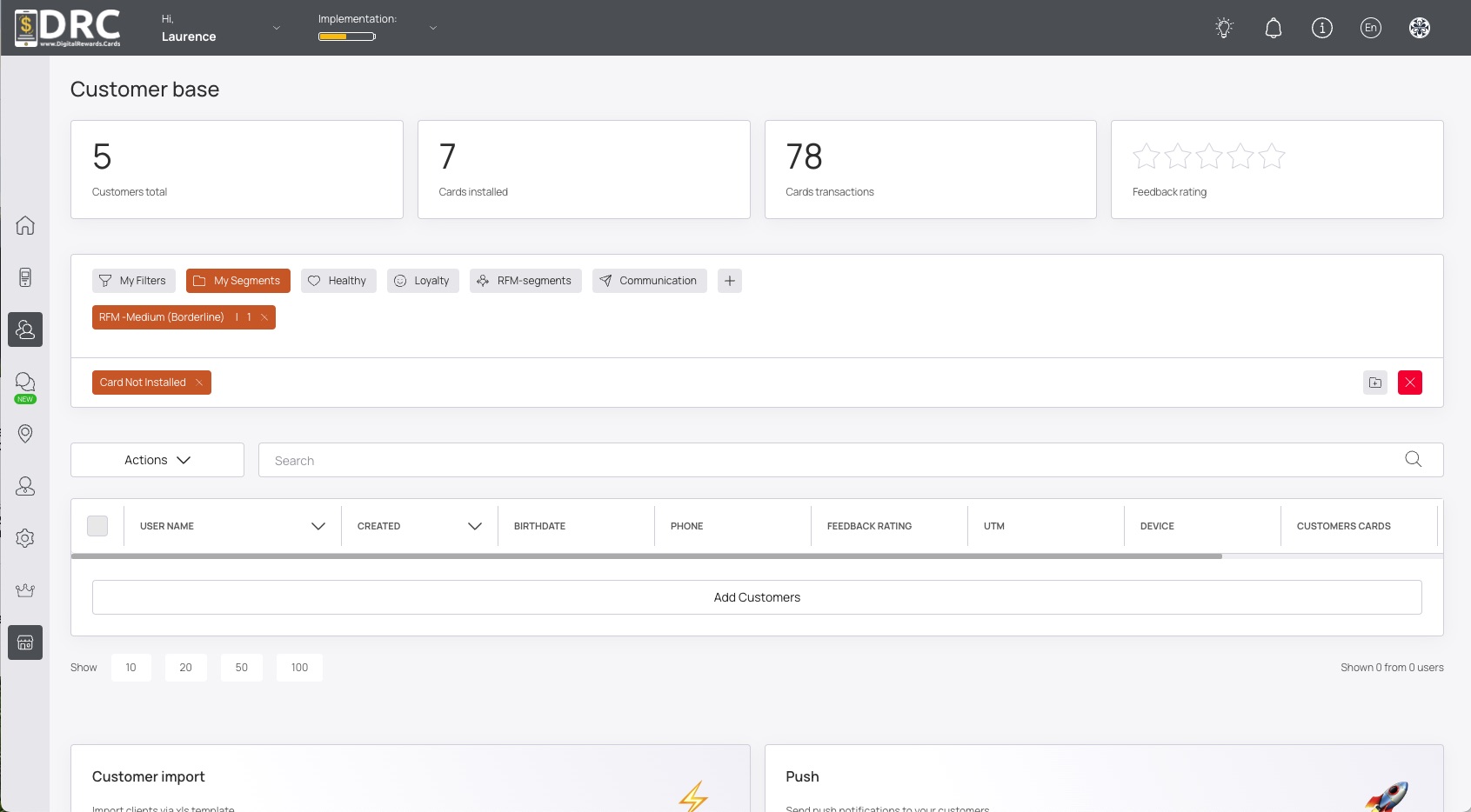
Now your customer list is will only display customers who do not have a card installed. In this case, we have 0 results. All customers have a card installed. #
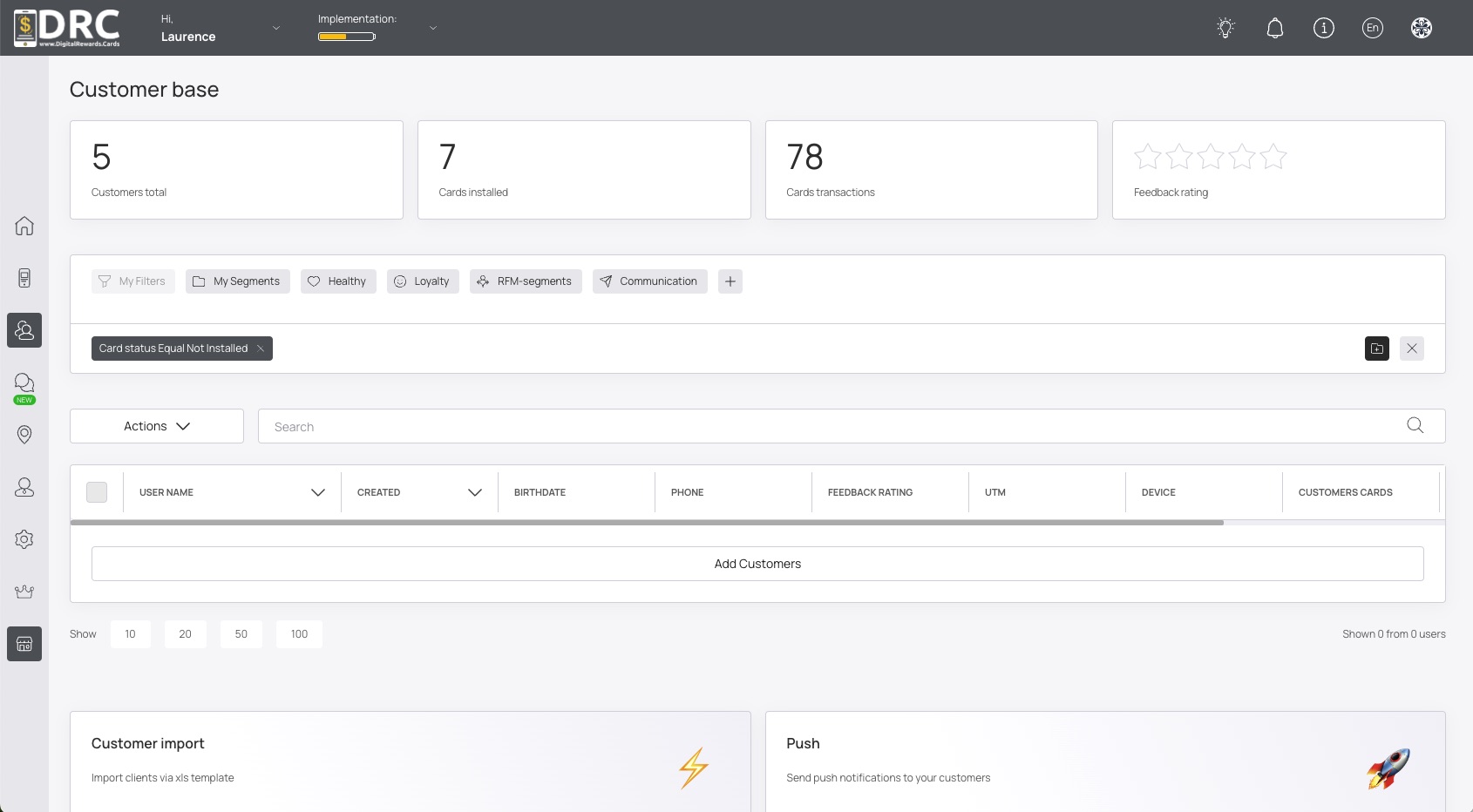
If you have customers that don’t have a card installed, save this segment and contact them with an offer! #
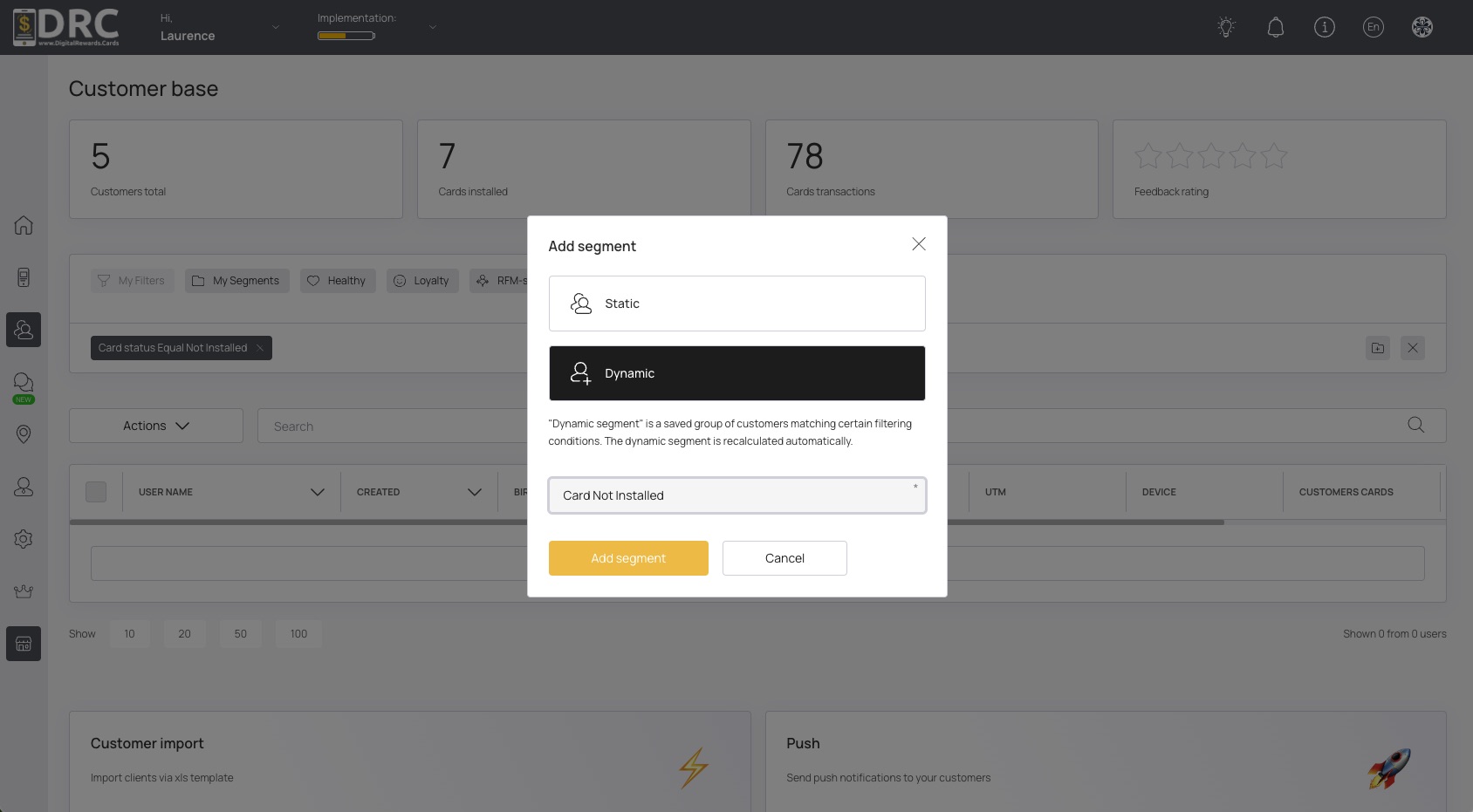
Choose Dynamic Segment for future use and give the segment a name. In this case, we’ll name it, Card Not Installed. #
Now click the Add Segment button, to save your segment for future use. #
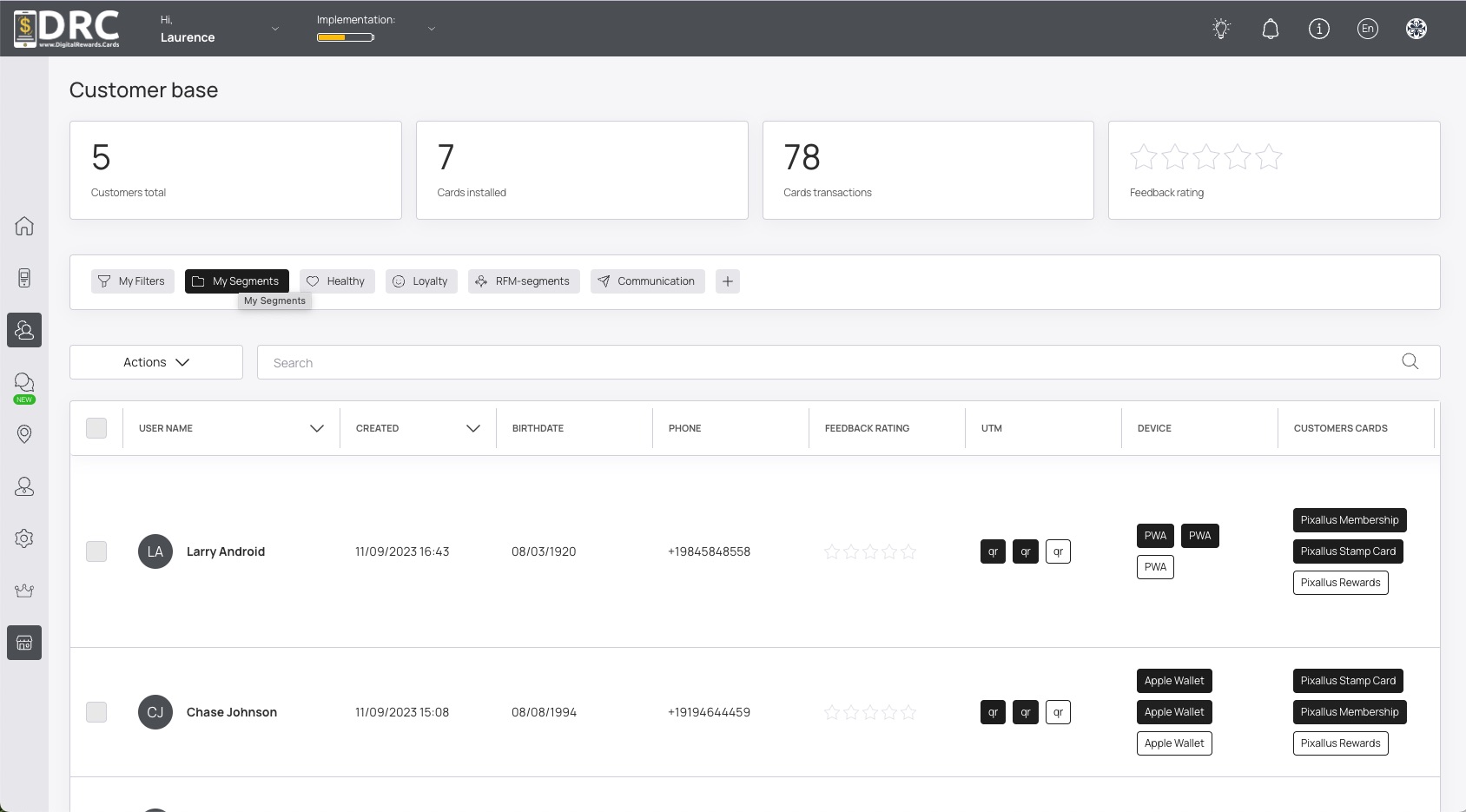
To view your saved segments, click the My Segments button. #
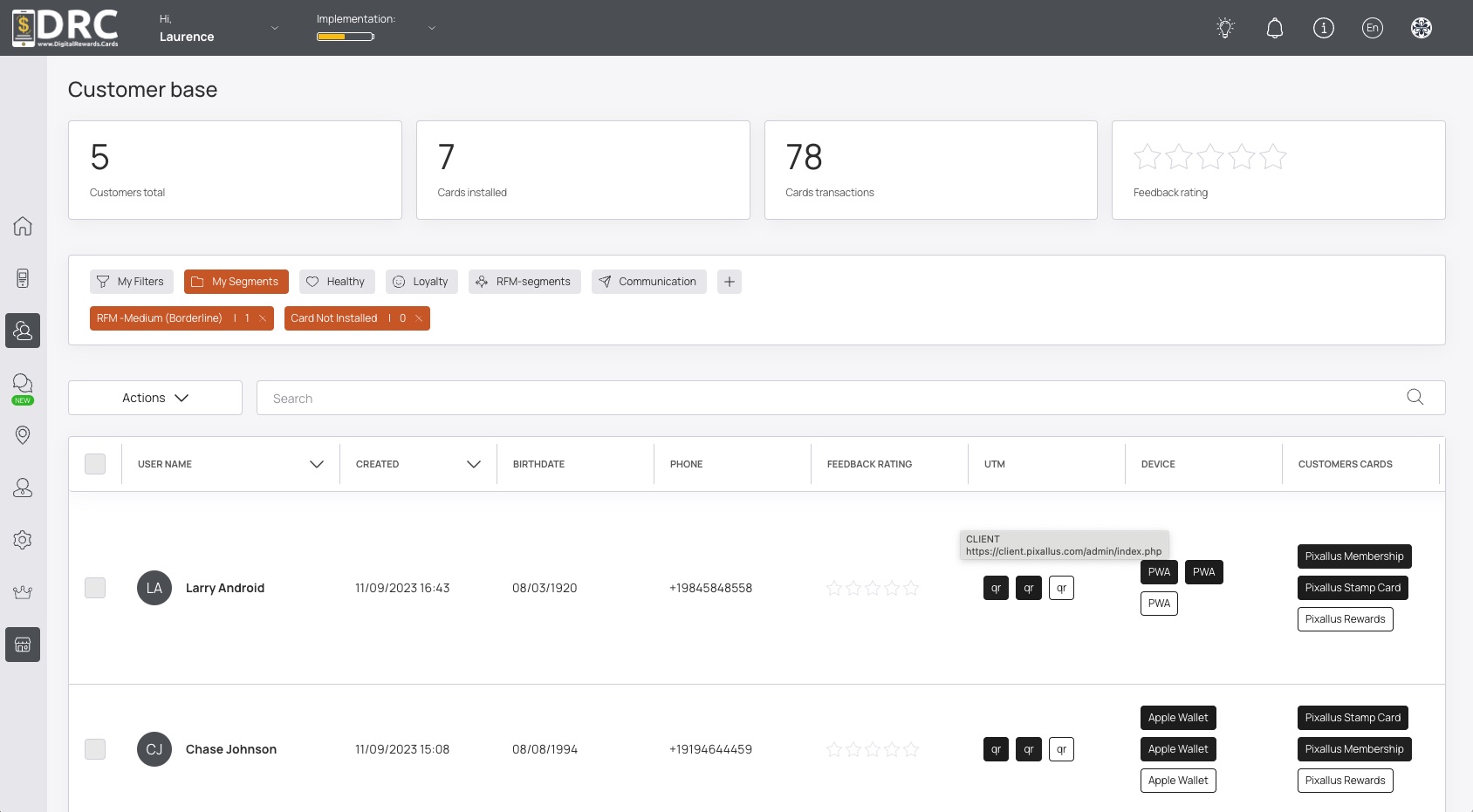
Choose your saved segment. In this case, Card Not Installed. #
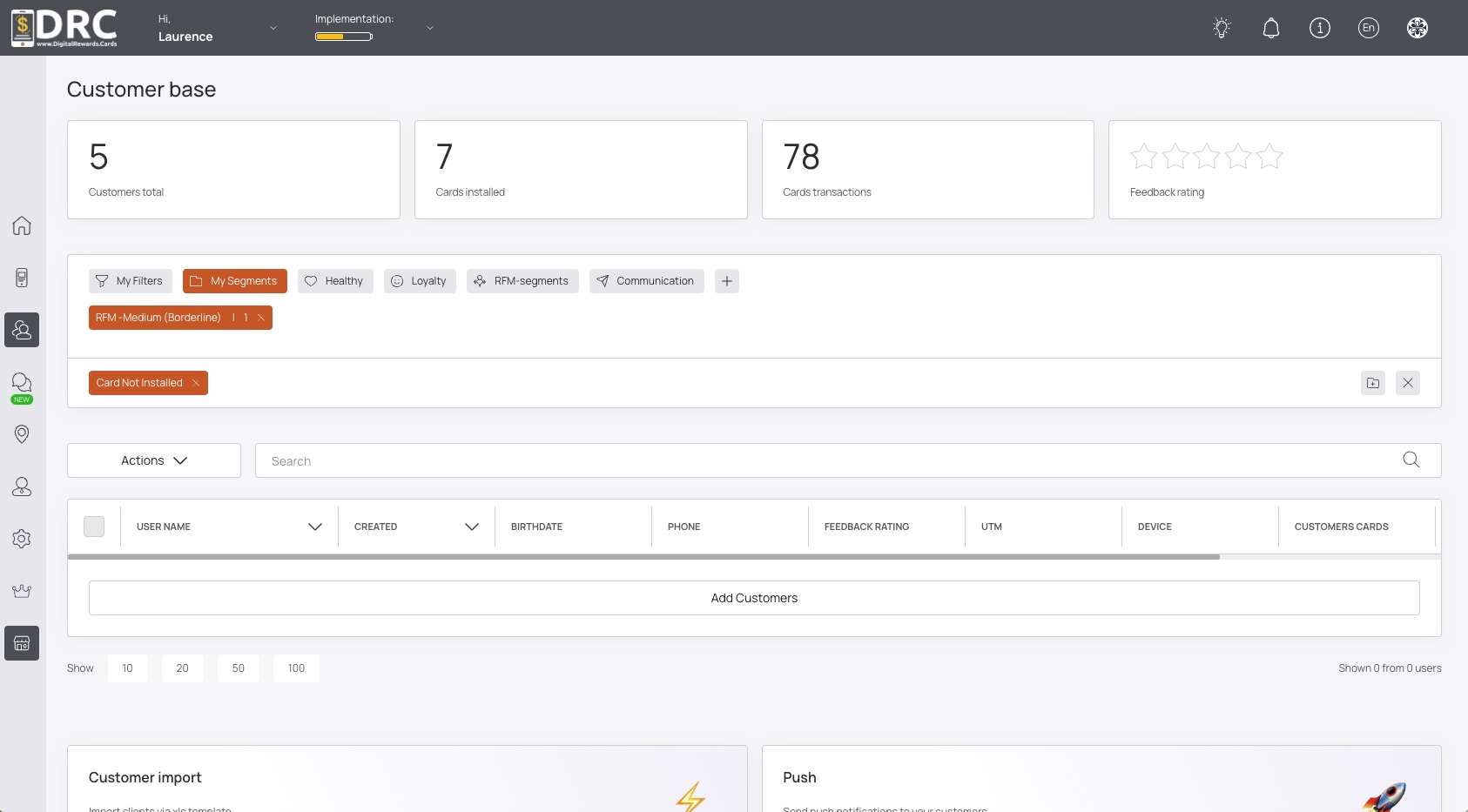
Now your filter is active and the customer list is updated. #