
Learn how to filter your customers in the Digital Rewards Cards (DRC) Dashboard.
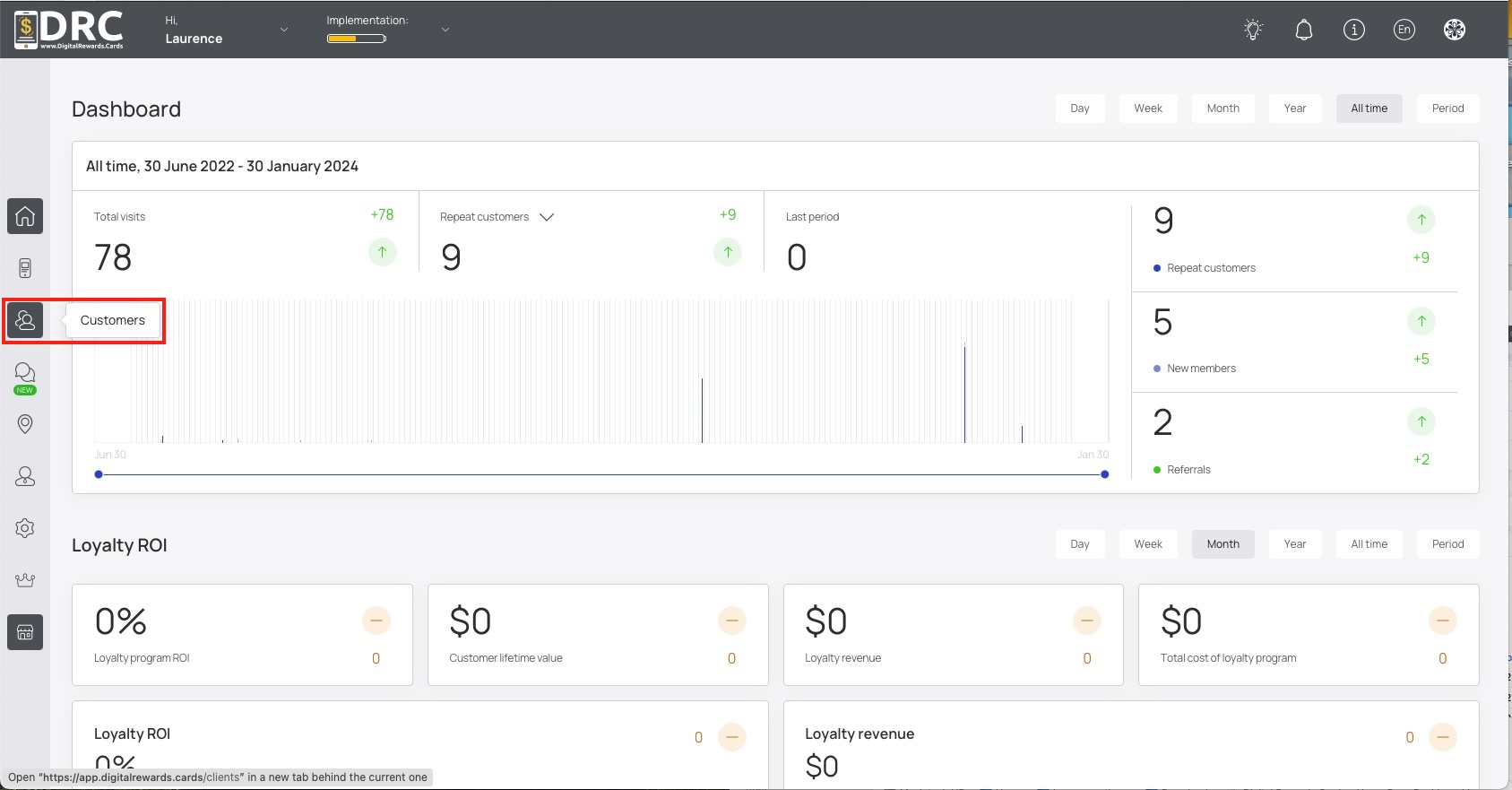
Once logged into the dashboard, click on the Customers icon in the left sidebar. #

You can choose default filters for quick view of your customers. Let’s look at RFM analysis. #

You can further filter customers by their RFM status. In this case, let’s look who’s borderline. #

Here we see the RFM Borderline filter has removed all customers, except 1. This customer could use an incentive to shop, send them an offer. #

Save your filter setting as a Segment for easy access, next time! #

Choose Static segment if you don’t want to results to auto-update. #
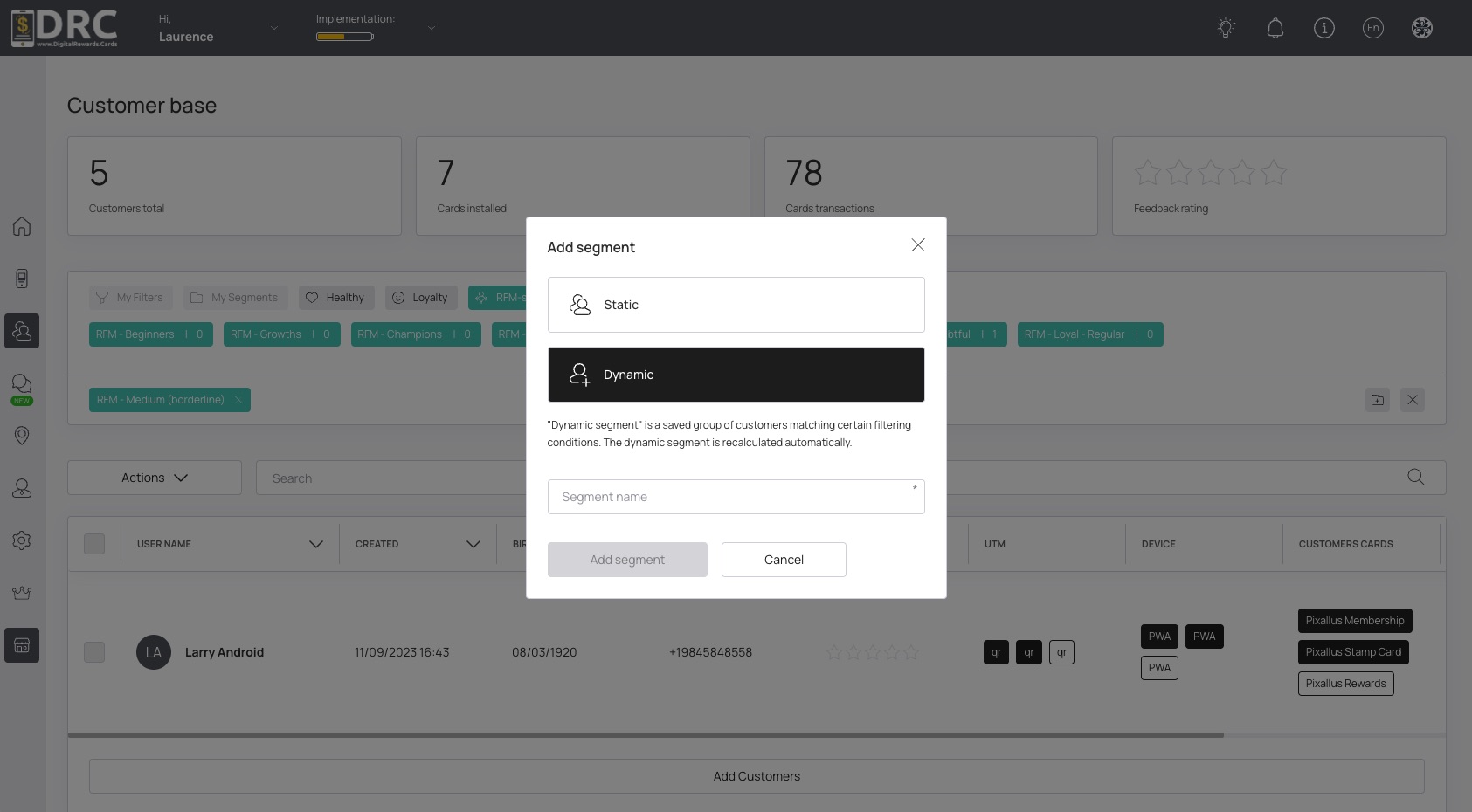
Or choose Dynamic segment if you want results to be recalculated each time. This is our recommended method. #

Give this Segment a name for easy access to results and push notifications. Then click the Add Segment button. #

To view your saved Segments, click My Segments. #

Now select your preferred Segment to filter your customers list. #
